SIP Attach lets Telnyx register as a SIP endpoint on your existing PBX or voice system. See Telnyx guidance and requirements.
SIP Attach lets Telnyx register as a SIP endpoint on your existing PBX or voice system. This gives your Telnyx resource, such as an AI Assistant, Call Control Application, or SIP-enabled application, native PBX presence. Under the hood, SIP Attach is configured using a UAC (User Agent Client) Connection. With a UAC Connection, Telnyx registers to your PBX as an extension, so internal callers can reach the Telnyx resource without routing through the PSTN. This helps reduce latency and cost while making it easier to connect employee-facing voice agents, internal support flows, and other SIP-enabled Telnyx applications to your existing voice infrastructure.
How UAC differs from other SIP connections
With a typical credential-based SIP connection, your PBX registers to Telnyx. With a UAC Connection, Telnyx registers to your PBX as an extension. IP- and FQDN-authenticated connections use different authentication and routing mechanisms; they are not examples of this reversed registration flow.
During registration, Telnyx is the SIP client and your PBX is the registrar. These roles describe the registration transaction, rather than fixed roles for every SIP request.
Before You Start
What you need from your PBX (customer side)
Before creating a UAC Connection, collect the following from your PBX administrator or PBX management console:
| Item | Notes |
| SIP username and password | Credentials for the extension Telnyx will register as |
| SIP proxy address | Where Telnyx sends SIP REGISTER requests (e.g., pbx.example.com:5060) |
| Transport protocol | UDP, TCP, or TLS — must match your PBX |
| Auth username (if different) | Some PBX systems use a separate username for SIP digest auth |
| Outbound proxy (if applicable) | If your network routes SIP through an intermediary |
| From User (if applicable) | If your PBX requires a specific caller identity in the SIP From header |
What you need to configure on your PBX (customer side)
On your PBX, you must:
-
Create a SIP extension that Telnyx will register as (e.g., extension 1001)
-
Allowlist Telnyx signaling IPs — your PBX must accept SIP REGISTER and INVITE requests from Telnyx's IP ranges.
- For SIP UAC registrations, Telnyx sends REGISTER requests from the Telnyx UAC IP for your selected region. See the UAC IP table at the end of this article. Allowlist the relevant IP on your PBX/firewall for SIP signaling.
What you need on the Telnyx side
- A Telnyx account
- Telnyx resource (such as a Call Control Application, AI Assistant, or SIP-enabled application) that will handle calls on this connection.
- UAC Connections follow the same per-account connection limits as other SIP Connection types in the Mission Control Portal.
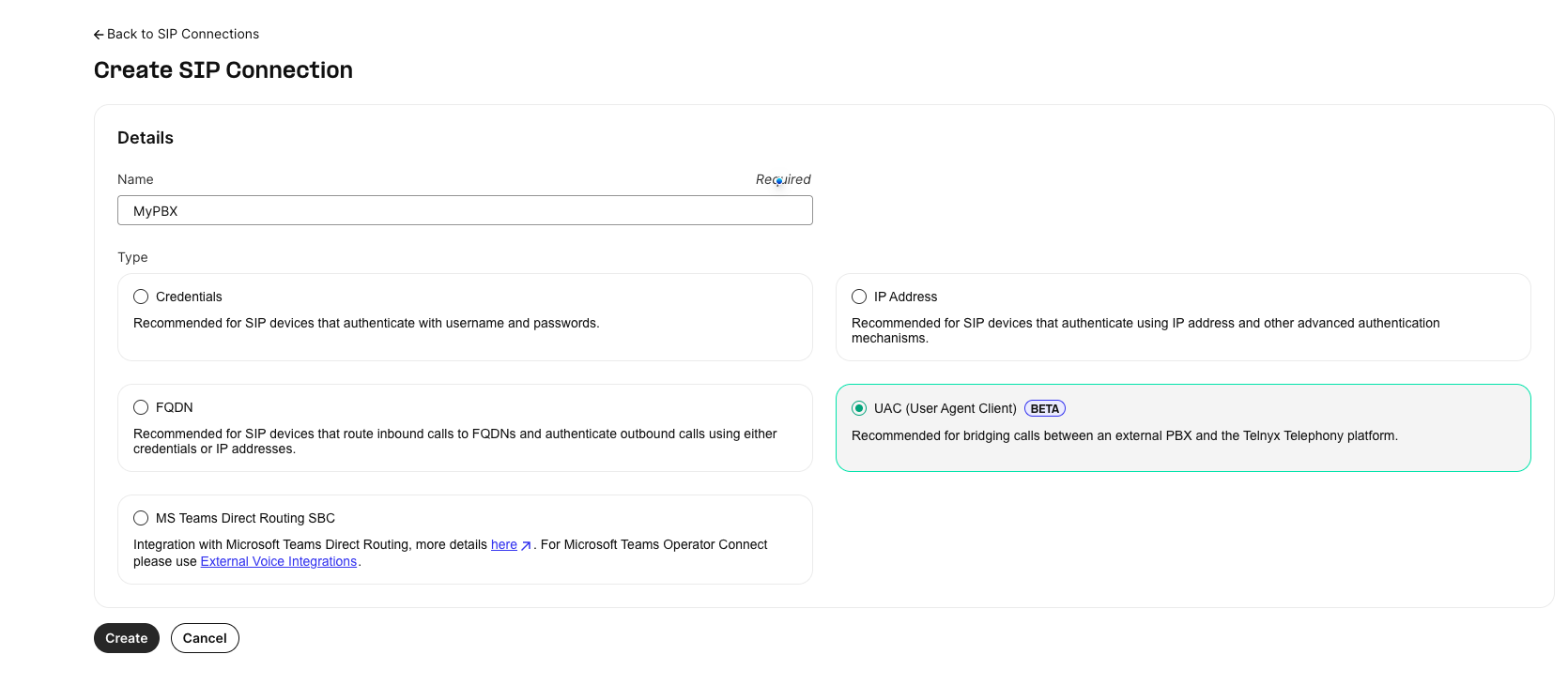
Step 1 — Select Connection Type
- Navigate to Voice → SIP Trunking → Create SIP Connection in the Mission Control Portal.
- Select the UAC (User Agent Client) tile.
- Enter a Name for your connection (e.g., PBX-uac).
- Click Next.
Step 2 — Authentication and Routing
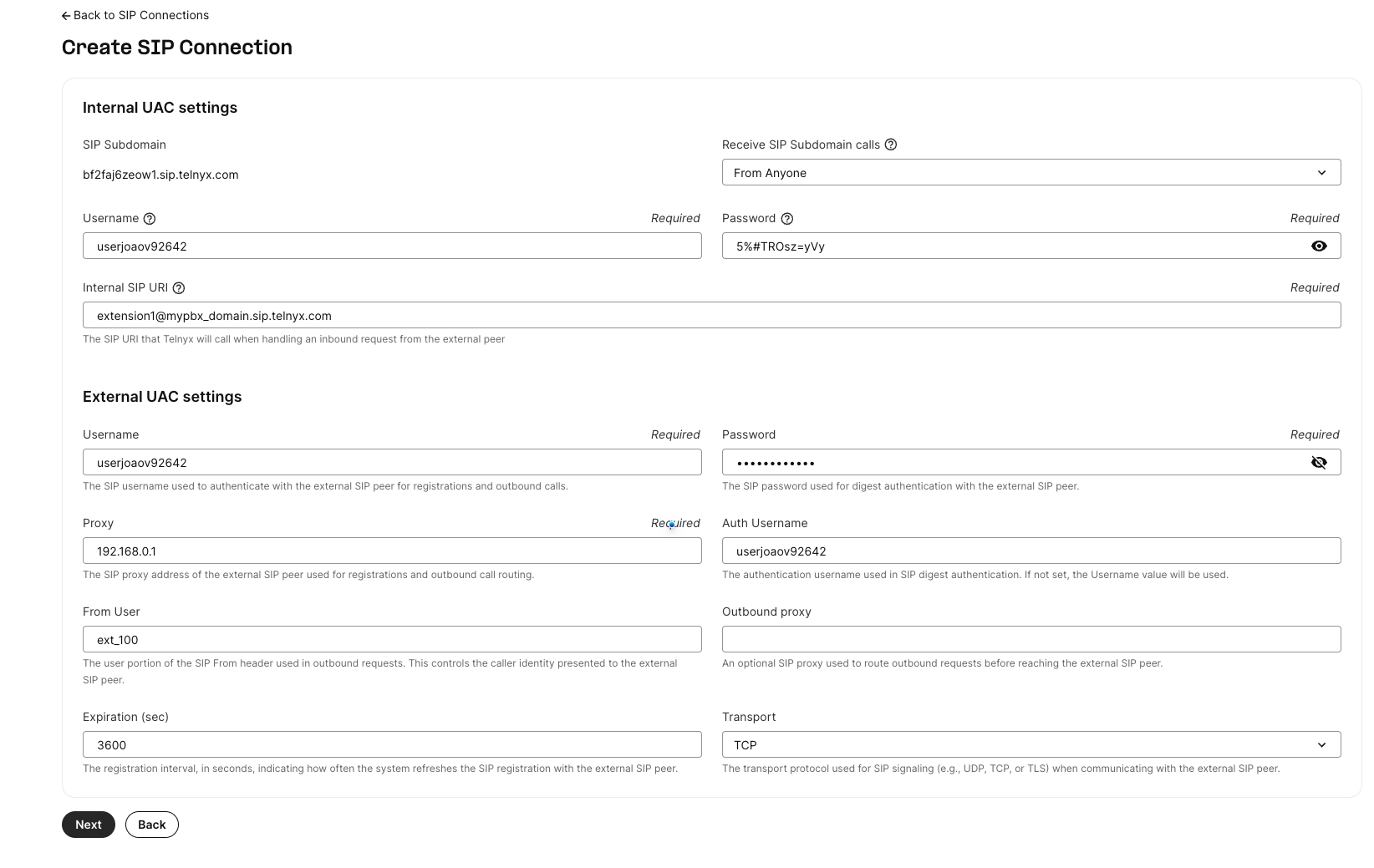
Step 2 has two sections: Internal UAC settings (Telnyx side) and External UAC settings (your PBX side).
Understanding the directional model
- Telnyx → PBX: External UAC settings provide the PBX address and credentials used for registration and outbound requests.
- PBX → Telnyx: Internal UAC settings identify the connection and specify the Telnyx application destination in Internal SIP URI.
Internal UAC settings (Telnyx side)
These fields define how Telnyx identifies this connection and how it handles inbound calls from the external peer.
| Field | Required | Description |
| SIP Subdomain | Read-only | Auto-generated domain identifying this connection (for example, qqffqgf1rbok.sip.telnyx.com). The Receive SIP Subdomain calls setting controls who can call this domain. |
| Receive SIP Subdomain calls | Yes | Controls who can place calls to the subdomain. Defaults to From Anyone. When enabled, Telnyx accepts inbound SIP calls addressed to this subdomain and routes them to the Internal SIP URI below. |
| Username | Yes | Internal SIP username (Telnyx-side identity). |
| Password | Yes | Internal SIP password. |
| Internal SIP URI | Yes | Telnyx destination for calls from your PBX. Use <extension>@<applicationFQDN>.sip.telnyx.com, for example 1012@assistant-74907225-9ab8-40c8-96e2-311fd7099ca8.sip.telnyx.com. Do not include the sip: prefix. |
Why the Internal SIP URI matters Because Telnyx registers to your PBX (rather than the other way around), inbound calls arrive via the SIP subdomain.
The Internal SIP URI tells Telnyx where to deliver them, typically your AI Assistant or Call Control Application. If this is wrong, registration will succeed but calls won't route.
External UAC settings (PBX side)
These fields configure how Telnyx registers with your external PBX.
| Username | Yes | SIP username for authenticating with your PBX. |
| Password | Yes | SIP password for digest authentication. |
| Proxy | Yes | SIP proxy address of your PBX (e.g., pbx.example.com:5060). Where Telnyx sends SIP REGISTER requests. |
| Auth Username | No | Separate username for digest auth, if your PBX uses one. Defaults to Username. |
| From User | No | User portion of the SIP From header in outbound requests. Defaults to Username. |
| Outbound proxy | No | SIP proxy for routing outbound requests through an intermediary, if required. |
| Expiration (sec) | No | Requested registration expiry in seconds. Your PBX may negotiate a different expiry, so this is not an exact refresh schedule. |
| Transport | No | UDP, TCP, or TLS. Must match your PBX configuration. |
| User-Agent | No | Optional custom SIP User-Agent for requests to your PBX. Up to 256 characters. See Custom User-Agent Header below for availability, validation, and API reset instructions. |
Click Next.
Custom User-Agent Header
Use external_uac_settings.user_agent to configure a custom SIP User-Agent for the external PBX connection. This can help identify traffic in PBX logs or satisfy a PBX policy that checks the header.
When available for your account, the User-Agent field appears under External UAC settings in the Portal. If the field is not visible, use the API instructions below.
Supported values
- Maximum length: 256 characters, inclusive.
- The API accepts ASCII letters (
a-z,A-Z), numbers (0-9), spaces, and.,-,_,(,),/,,. - The Portal currently accepts the same characters except commas. To configure a value containing a comma, use the API.
- The API rejects an empty string (
""). Sendnullto clear a custom value; omit the field on PATCH to keep the existing value.
Set a custom value
Send PATCH /v2/uac_connections/{id} with this JSON body:
{
  "external_uac_settings": {
    "user_agent": "MyCompany-Telnyx-Bot/1.0"
  }
}
The configured header value is:
User-Agent: MyCompany-Telnyx-Bot/1.0
Clear a custom value
Send PATCH /v2/uac_connections/{id} with:
{
  "external_uac_settings": {
    "user_agent": null
  }
}
This removes the custom override so the connection uses its default User-Agent behavior. An omitted field does not clear a previously saved value.
Allow time for configuration changes to propagate before checking new SIP traffic in your PBX logs. Saving an API value does not confirm that it is already present in a SIP message.
Steps 3–6 — Configuration, Inbound, Outbound, Numbers
Configure these steps the same way you would for an FQDN connection:
-
Step 3 — Configuration: Codec preferences, SRTP, and other SIP settings.
-
Step 4 — Inbound: Inbound call routing and handling rules.
SIP Region: Select the region closest to your PBX to minimize signaling latency and RTP round-trip time. For example, if your PBX is hosted in Europe, selecting the Europe region ensures that REGISTER requests and media traffic originate from the European UAC IP rather than the US proxy.
You can change the SIP Region at any time from the Inbound tab in your Connection settings.
-
Step 5 — Outbound: Outbound call routing rules.
-
Step 6 — Numbers: Assign phone numbers to this connection. (Optional)
UAC inbound routing is different For IP-based and FQDN connections, inbound calls are routed based on source IP or resolved hostname.
For a UAC connection, Telnyx is a registered endpoint on the PBX, calls arrive via the SIP subdomain and are routed according to the Internal SIP URI you set in Step 2.
Make sure that URI points to the correct Telnyx resource.
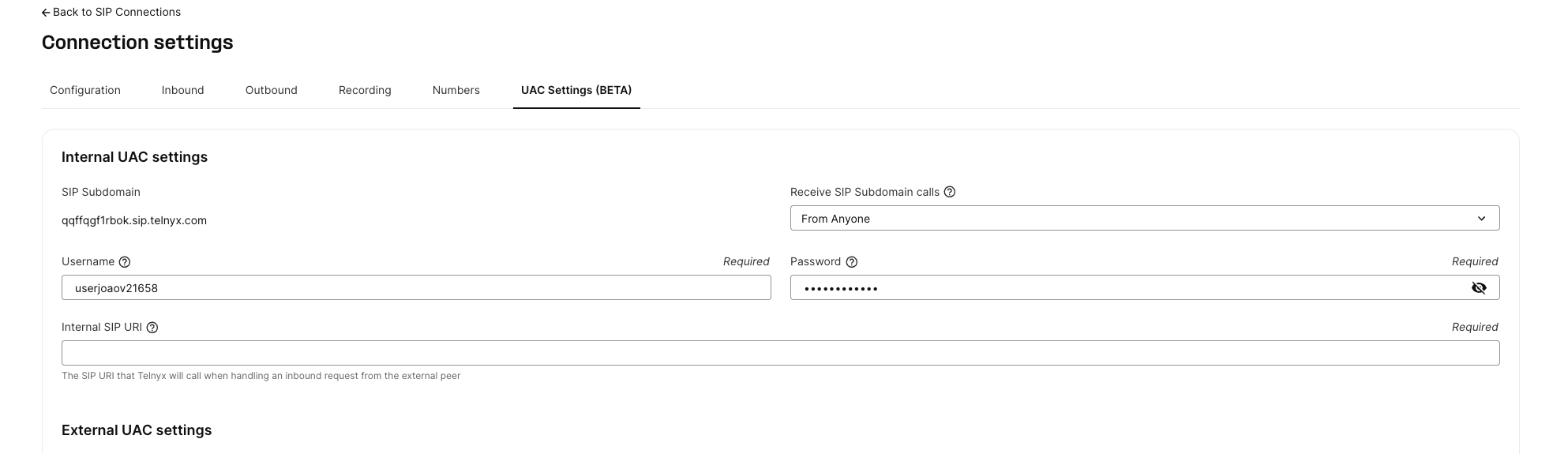
To edit your configuration later, navigate to Voice → SIP Trunking, select your UAC connection, and go to the UAC Settings tab.
Check Registration status
After creating or editing a UAC Connection, review the Registration status section to confirm whether Telnyx is registered to your external SIP registrar or PBX.
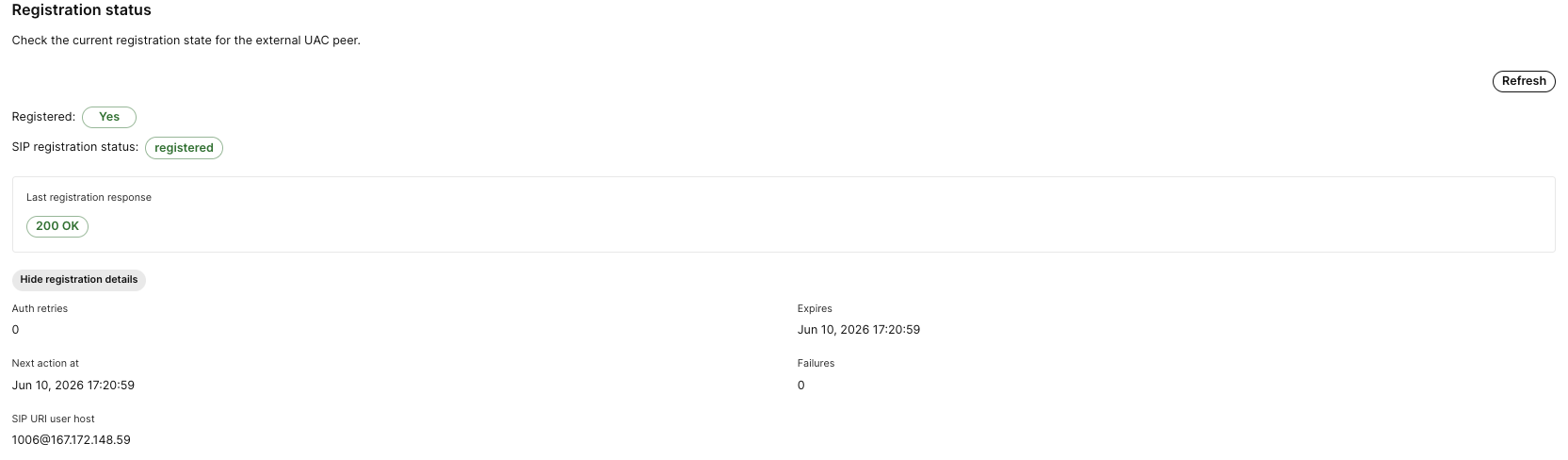
The main field to check is SIP registration status:
| SIP Registration Status | Meaning |
| registered | Telnyx is currently registered to the external SIP registrar/PBX. |
| trying | Telnyx is attempting or retrying SIP registration. Wait for the registration attempt to complete, then refresh the status. |
| failed | The latest registration attempt failed. Check Last registration response for more information. |
| unregistering | Telnyx is removing or unregistering the SIP registration. |
| connection_disabled | The UAC Connection is disabled or suspended, so registration is not active. |
| unknown | The registration state is unavailable or not classified. |
The Registration status section also includes:
| Field | Description |
| Registered | Shows whether the UAC connection is currently registered. This shows Yes only when SIP registration status is registered. |
| Last registration response | Shows the most recent SIP response Telnyx received from the external SIP registrar/PBX, such as 200 OK. |
| Refresh | Fetches the latest registration state. Use this after saving changes or updating PBX settings. |
| Show registration details | Expands additional technical registration details, such as retry/failure counters, expiration timing, next scheduled action, uptime, and SIP URI/contact information. |
After creating or updating a UAC Connection, registration status may take a few minutes to update while Telnyx picks up the configuration and attempts SIP registration.
Edit or Delete a UAC Connection
Edit credentials or proxy settings
- Navigate to Voice Suite → SIP Trunking → SIP Connections in the Mission Control Portal.
- Select your UAC connection.
- Click Edit to update editable fields in Step 2 — for example, changing the Password after a PBX credential rotation, updating the Proxy address after a network change, or adjusting the Expiration (sec) value.
Disable a connection to force a fresh registration
If you need to force a fresh, clean SIP registration without deleting the connection, temporarily disable the UAC Connection and then re-enable it. Disabling the connection unregisters the SIP UAC from your PBX. When you re-enable the connection, Telnyx starts a new registration attempt using the current External UAC settings.
Delete a connection
- Navigate to Voice Suite → SIP Trunking → SIP Connections in the Mission Control Portal.
- Select your UAC connection.
- Click Delete and confirm.
Deleting a connection immediately deregisters from the PBX. Any phone numbers assigned to the connection will be unlinked — reassign them to another connection before deleting if you want to preserve inbound service.
Telnyx UAC IP Addresses
Telnyx uses the following public Anycast IPs for both SIP signaling and RTP media on UAC (SIP Attach) connections. The IP depends on the SIP region selected in your UAC Connection settings.
| Region | Public Anycast IP |
| US | 192.76.120.14 |
| Europe | 192.76.120.72 |
| Australia | 192.76.120.73 |
| Canada | 192.76.120.74 |
| Middle East | 192.76.120.75 |
| Asia (Beta) | 192.76.120.76 |
Allow-list the relevant IP(s) on your PBX/firewall for both SIP signaling (ports 5060/5061) and RTP media (ports 16384–32768 UDP).
Troubleshooting
Before troubleshooting call routing, check the Registration status section on the UAC Connection.
- If SIP registration status is registered, Telnyx is registered to the external SIP registrar/PBX. If calls still do not route, check the PBX dial plan and the Internal SIP URI configured in Telnyx.
- If the status is trying, Telnyx is attempting or retrying registration. Wait for the registration attempt to complete, then click Refresh to check the latest status. If the status remains trying for several minutes or changes to failed, review Last registration response and continue troubleshooting.
- If the status is failed, review Last registration response and check the SIP username, password, auth username, proxy, transport, and PBX registrar settings.
- If the status is
connection\_disabled, confirm the UAC Connection is enabled in UAC Connection details. - After making changes, click Refresh to confirm the latest registration state.
Connection stuck in "Registering"
- Verify your PBX is reachable at the Proxy address from the public internet.
- Check that the port is correct (5060 for UDP/TCP, 5061 for TLS).
- Confirm no firewall is blocking SIP traffic from Telnyx UAC IP, see the UAC IP table above.
- Verify the Transport setting in Step 2 matches what your PBX expects (UDP, TCP, or TLS).
Registration succeeds but calls don't route
-
On the PBX side: Verify your PBX dial plan routes calls to the registered extension correctly. Confirm the extension is assigned to the right user or hunt group.
-
On the Telnyx Mission Control Portal: Confirm Receive SIP Subdomain calls is set correctly in Step 2 — this controls whether Telnyx accepts inbound calls addressed to the SIP subdomain. Verify your telephony resource (AI Assistant, Call Control Application) is correctly linked to this connection and the Internal SIP URI points to it.
-
Verify the Internal SIP URI uses the correct extension-dialing format:
<extension>@<applicationFQDN>.sip.telnyx.comIf this field is set to a generic SIP URI such as assistant-@sip.telnyx.com, registration may succeed but calls from the PBX will not route to the intended Telnyx application.
-
If media (audio) isn't flowing, confirm your firewall allows RTP from the same UAC IP (Telnyx uses the same IP for signaling and media on UAC connections). See UAC IP table.
Registration expires frequently
If your PBX rate-limits registrations or you see frequent re-registration cycles:
- Edit the connection in the Mission Control Portal.
- Increase the Expiration (sec) value in Step 2 (e.g., from 3600 to 7200).
- Check your PBX's minimum and maximum registration interval settings — some PBX systems override the requested expiry.
Custom User-Agent not appearing on PBX
- Retrieve the connection with
GET /v2/uac_connections/{id}and checkexternal_uac_settings.user_agentto confirm the saved value. - Allow time for configuration changes to propagate, then inspect new SIP traffic sent to your PBX.
- Use 256 characters or fewer and the supported characters listed above. Values containing commas must currently be configured through the API.
- To remove a custom value, PATCH it to
null; do not send an empty string.
Need Help?
If you're still having trouble, contact Telnyx support at support@telnyx.com or open a ticket in the Mission Control Portal. Include your Connection ID and any SIP logs from your PBX for faster resolution.