There are two types of SIP trunks you can configure:
- A VoIP Register Trunk: Uses a credentials based authentication
- A VoIP Peer Trunk: Uses an IP address and PBX port based authentication
In this article we will:
- Set up a sip registration based trunk
- Set up a peer/IP authentication trunk
- Set up outgoing calls
- Set up incoming calls
Additional documentation
-
Yeastar Cloud PBX(PCE):
PBX server administrator guide -
Yeastar P-Series Self-hosted PBX(PSE):
Installation guide
Pre-Requisites:
- Have an active, and properly configured, Telnyx Mission Control Portal.
- Review our getting started guide to make sure your Telnyx Mission Control Portal account is set up correctly.
- Have DIDs in your Mission Control Portal ready to use.
- Install Yeastar PBX and work through the first 3 sub-sections of the Yeastar Getting Started Guide.
- When you reach the Set up VoIP trunks section, return here and begin at step 1 below for a Telnyx-specific configuration.
Set up a SIP registration based trunk
In this step, you'll add a peer SIP trunk in your Yeastar PBX.
Note: A register trunk uses a username/password combination (credentials) to authenticate.
-
Add a SIP Trunk in P-Series PBX System
After you get the SIP trunk account, you need to add a SIP trunk in Yeastar P-Series PBX System. Go to Extension and Trunk > Trunk, click Add.
-
Configure the trunk
Basic Configuration:
- Name: Enter a name for the SIP trunk to help you identify it
- Telnyx is a Yeastar certified SIP trunk provider, so you can select "Select ITSP Template" from the drop-down list first and choose the country of the ITSP. Then select the Telnyx "ITSP" name in the right box. All of the parameters are embedded except the account registration information
- Make sure the trunk status is "Enabled"

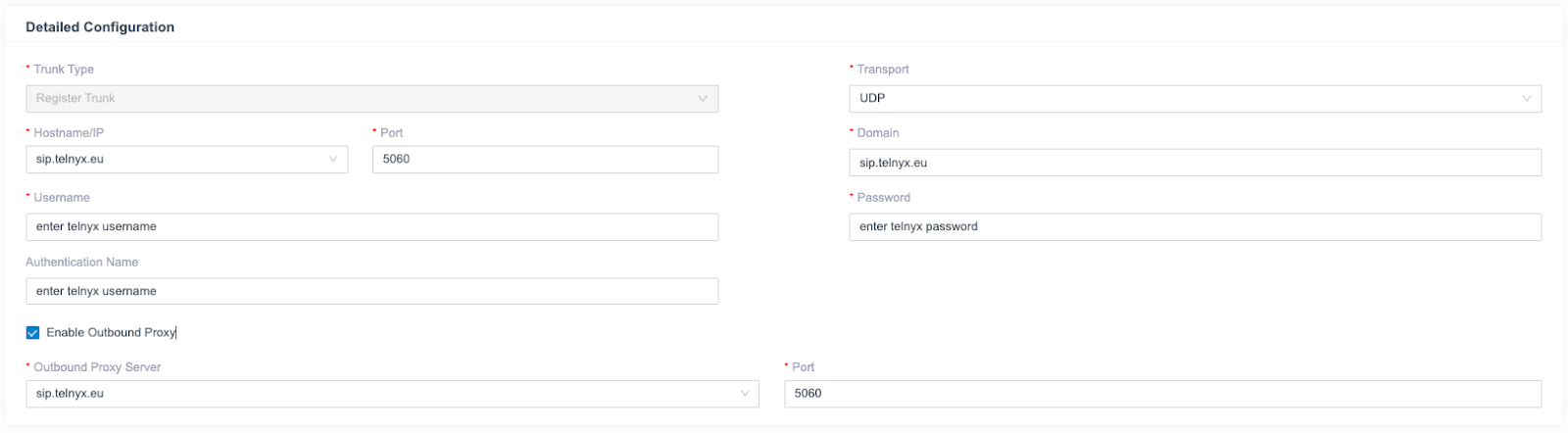
Detailed Configuration:
The parameters of the certified ITSP template are embedded. You don’t have to figure out Trunk Type, Transport, Hostname, Port, Domain.
However, if you need to change it you can refer to https://sip.telnyx.com/ for information on Telnyx SIP proxies, transport protocols, and ports.
- Username: your Telnyx username.
- Password: your Telnyx password.
- Authentication Name: the same as the username.
- Enable Outbound Proxy: Leave disabled unless your network topology requires routing through a proxy (e.g. specific NAT traversal setups). If required, set it to your actual proxy server address.
- Check the Trunk status
Click Save and Apply. Check if the trunk is connected in Status, indicated by the checkmark.
Set up a Peer/IP authentication trunk
In this step, you'll add a peer SIP trunk into your Yeastar PBX. A peer trunk uses IP authentication.
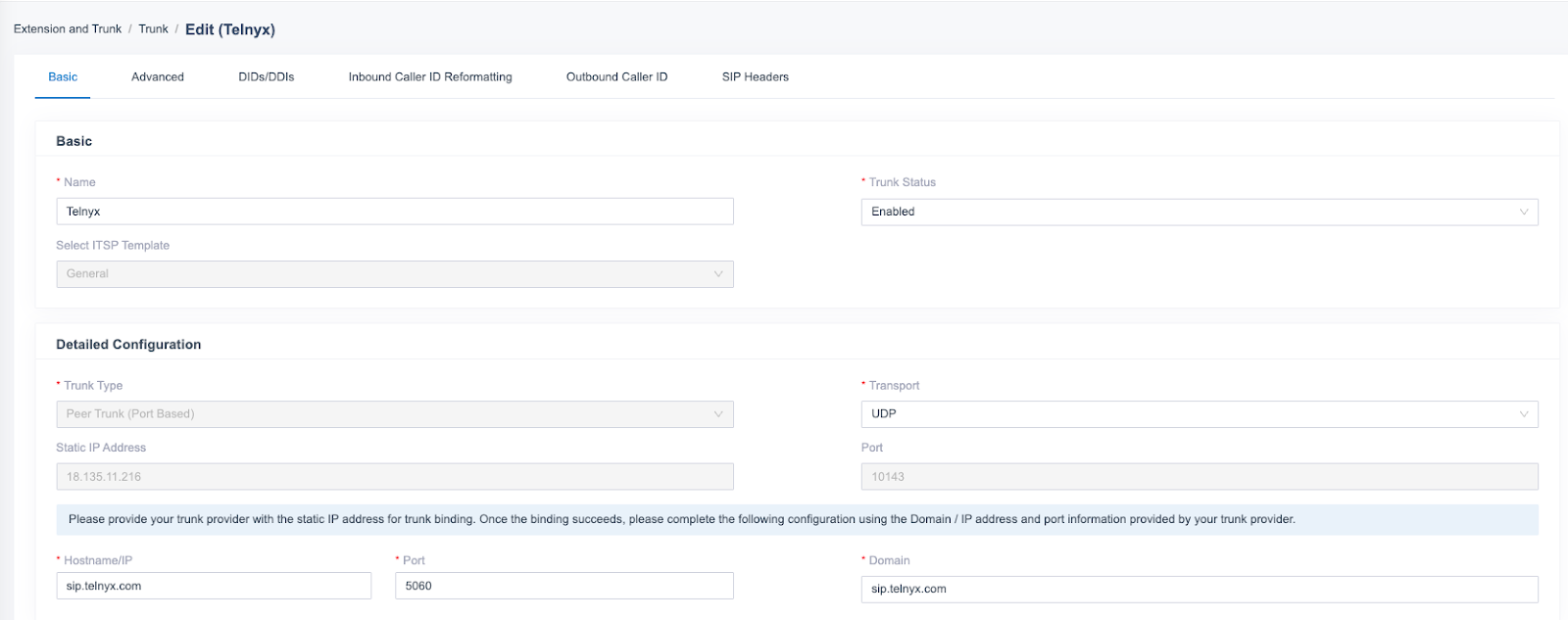
- Login to the PBX web portal, go to Extension and Trunk > Trunk, click Add.
- In the Basic section, configure the following settings:
Name: Enter a name to help you identify the trunk.
Trunk Status: Select Enabled
Select ITSP Template: Select General
In the Detailed Configuration section, select the trunk type and enter the SIP information that is provided by the ITSP.
Trunk Type: Peer Trunk (Port Based)
The Static IP Address and Port of the PBX will be displayed on the web page. This needs to be added in the Telnyx Mission control portal under SIP Trunking> Edit the IP type connection> Authentication and routing> IP addresses.
Transport: UDP/ TCP/ TLS, or DNS-NAPTR.
DNS-NAPTR lets the PBX discover Telnyx's available SIP proxies automatically and fail over between them, which a fixed single-transport configuration cannot do.
Hostname/IP: Enter the Telnyx domain name or IP address. Refer to https://sip.telnyx.com/ for information on Telnyx SIP proxies, transport protocols, and ports.
Port: Enter the Telnyx SIP port. When using DNS-NAPTR, set the port to 0 to automatically use the ports specified in the NAPTR/SRV records.
Domain: Enter the domain in SIP URI of a specific header like From, To header same as Hostname/IP field.
Set up Outgoing Calls
To make outbound calls via the newly created SIP trunk, you need to configure an outbound route for the trunk.
-
Create an Outbound Route
Go to Call Control > Outbound Route, click Add.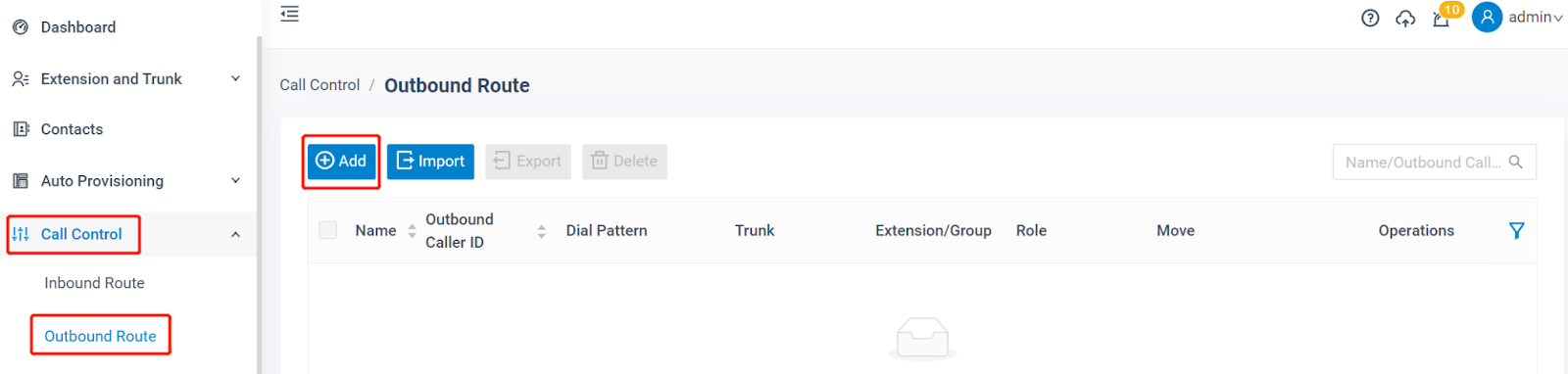
-
Configure the Outbound Route
The system compares the number with the pattern that you have defined in your route 1. If it matches, it will initiate the call using the selected trunks. If it does not, it will compare the number with the pattern you have defined in route 2 and so on. The outbound route which is in a higher position will be matched firstly.
You can adjust the outbound route sequence by clicking these buttons:

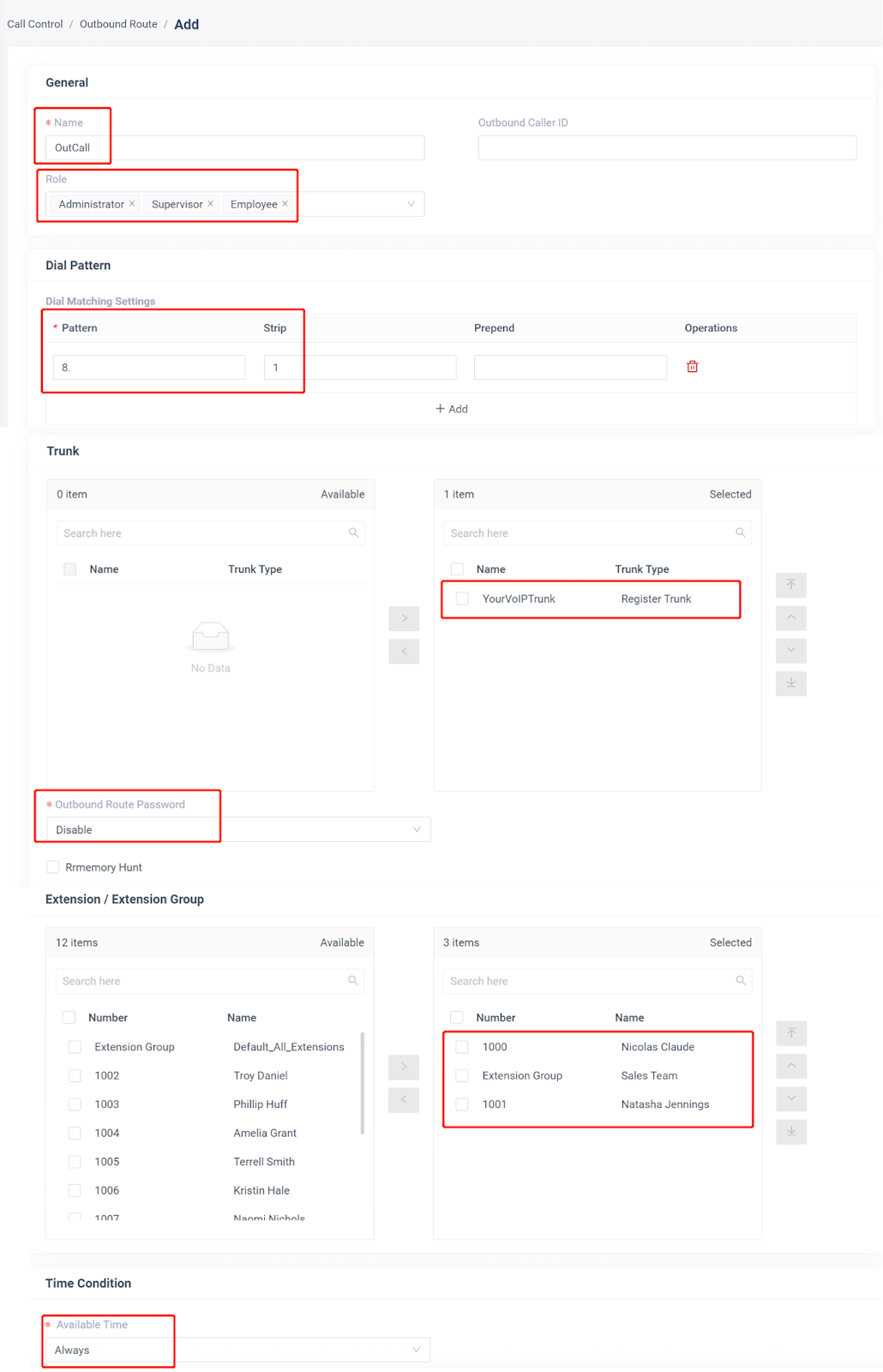
- Name: give this outbound route a name to help you identify it.
- Role: select the role that can use this outbound route to make outbound calls.
- Dial Patterns: set the dial patterns. As the settings below, to make calls via the SIP trunk, you need to precede the number to be dialed with the prefix 8.
- Dial Pattern: 8.
- Strip: 1
- Trunk: select the Telnyx SIP trunk.
- Outbound Route Password: you can prompt users for a password before allowing calls to progress.
- Extension/Extension Group: select the extensions or extension groups that are allowed to make calls through the outbound route.
- Time condition: select time condition to allow this outbound route.
3. Click Save and Apply
Now you can make outbound calls through the SIP trunk. As the dial patterns configured above, you need to dial “8” before the destination number.
For example, to call the number “01234567”, you need to dial “801234567” on your phone.
Set up incoming calls
In this step, you'll get Yeastar ready to take incoming calls by configuring an inbound route for the SIP trunk.
-
Create an Inbound Route
Go to Call Control > Inbound Route, click Add.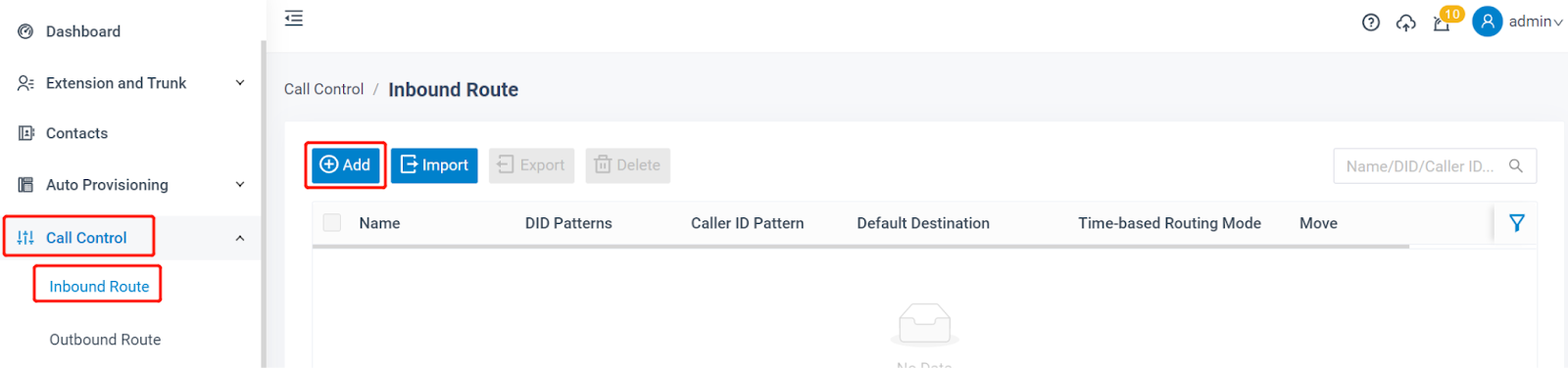
-
Configure the Inbound Route
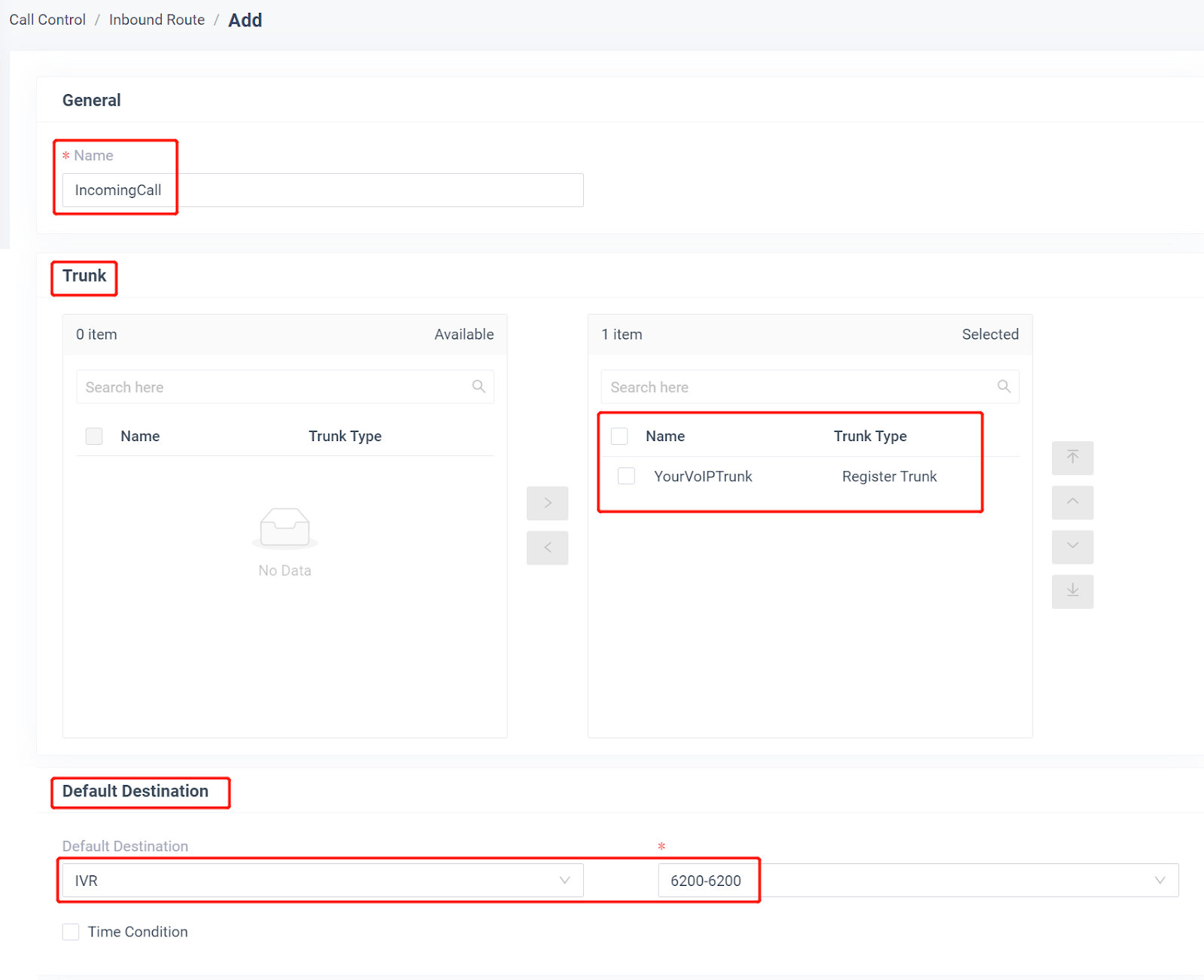
- Name: give this inbound route a name to help you identify it.
- DID Pattern: specify the did pattern to match and pass the incoming call through this inbound route.
- Caller ID Pattern: define the caller ID number that is allowed to call through this inbound route.
- Trunk: choose the Telnyx SIP trunk.
- Default Destination: select the default destination or set with Time Condition.
3. Click Save and Apply
When you call in the SIP trunk, the call will be routed to the destination configured on the inbound route.
You have now set up your SIP trunk in Yeastar PBX and configured it to work with Telnyx.