This guide describes an alternative, manual method for connecting WhatsApp Calling to Telnyx for user-initiated calls, which are calls that WhatsApp users place to your business. You configure the SIP server in WhatsApp Manager, then configure your Telnyx application or SIP connection to receive those calls.
For the automated setup through the Telnyx Mission Control Portal (MCP), see Enabling WhatsApp Business Calling on Telnyx and BYON Numbers. For the account and number setup steps, see How to Set Up WhatsApp on Telnyx.
The manual setup uses the format <subdomain>.sip.telnyx.com, where <subdomain> matches the subdomain already configured for your Telnyx application or SIP connection. Have that subdomain ready before following the steps below.
Before you begin
Have access to your phone number in WhatsApp Manager, the subdomain configured for your Telnyx Programmable Voice application or SIP connection, and the Meta App ID for your WhatsApp integration. You will use that subdomain in the SIP server address.
1. Open WhatsApp Manager
Go to WhatsApp Manager and select the business account that contains your phone number.
2. Open the phone number call settings
Select the phone number you want to edit, then click Call settings.
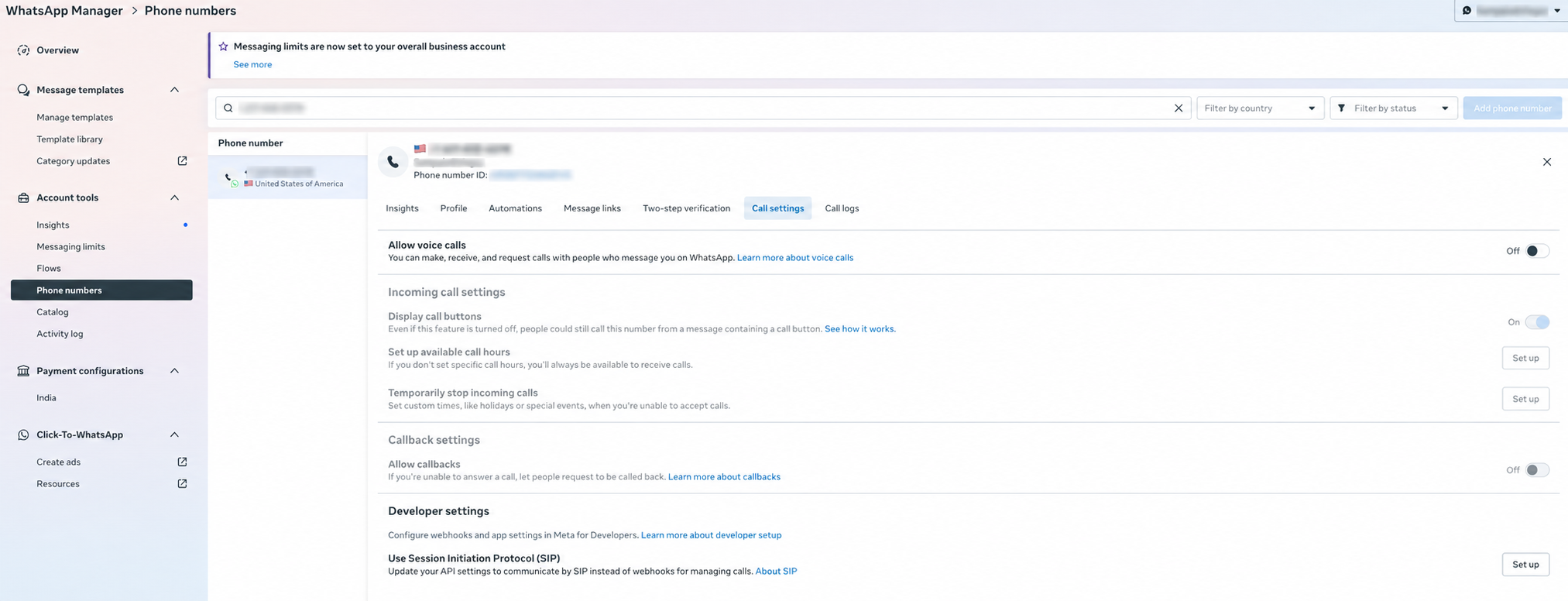
3. Edit the SIP connection
Under Developer settings, find Use Session Initiation Protocol (SIP) and click the pencil icon to edit the connection. If the section shows Set up instead, click Set up.
The Set up your connection to use SIP communication dialog opens.
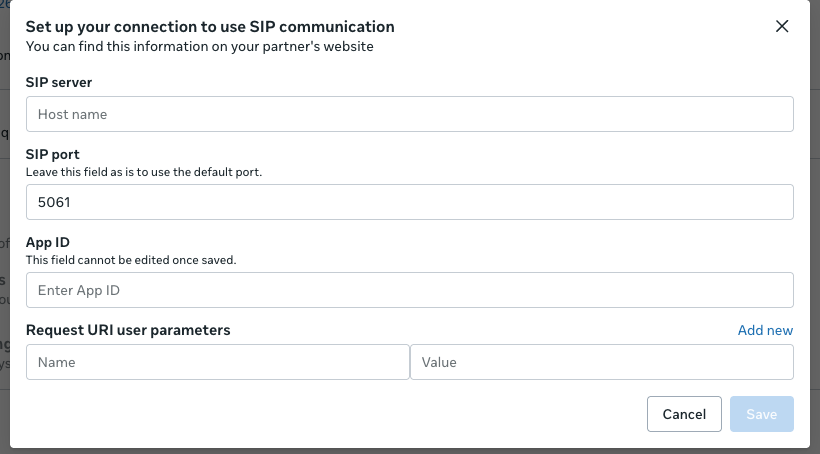
4. Enter your Telnyx SIP server
In SIP server, enter:
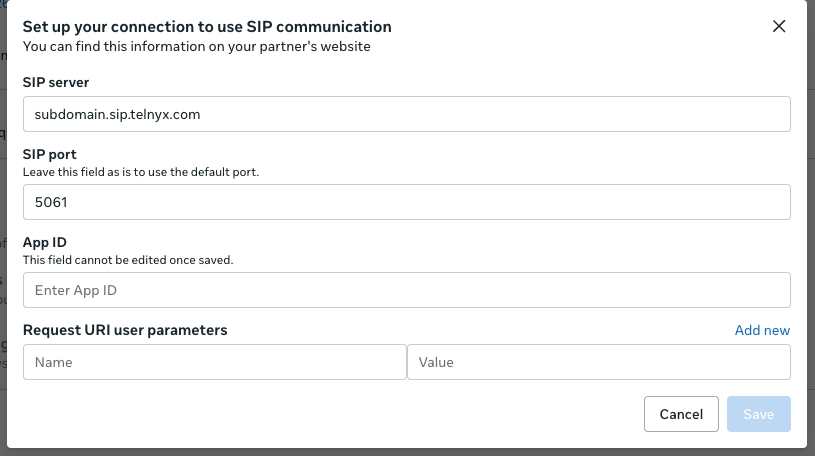
<subdomain>.sip.telnyx.com
Replace <subdomain> with the subdomain configured for your Telnyx Programmable Voice application or SIP connection. For example, if your configured subdomain is support, enter support.sip.telnyx.com.
Enter only the hostname, without https:// or the angle brackets. The value subdomain.sip.telnyx.com in the screenshot is an example; replace it with your own hostname.
5. Enter the Meta App ID and save
In App ID, enter the Meta App ID for the app used by your WhatsApp integration. You can find it in your app dashboard in Meta for Developers. This is separate from your Telnyx application ID, WhatsApp Business Account ID, and phone number ID.
Check the App ID carefully before saving. As indicated in the dialog, this field cannot be edited once saved.
Click Save to apply the change. Reopen the SIP connection settings and confirm that SIP server shows your intended hostname.
6. Configure call handling
Configure the Telnyx application or SIP connection associated with the subdomain you entered in step 4 to accept incoming SIP subdomain calls.
- In the Telnyx Mission Control Portal, open the relevant application or SIP connection.
- Go to Connection Settings → Authentication and routing.
- Set Receive SIP Subdomain calls to From Anyone.
- Save your changes.
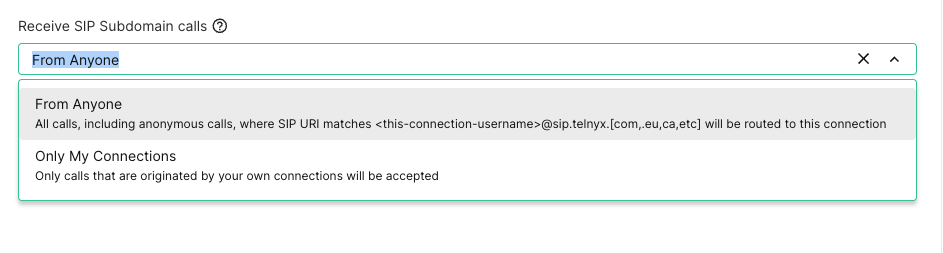
Select From Anyone so your application or SIP connection can receive WhatsApp calls from Meta. This setting accepts calls to the configured SIP subdomain, including anonymous calls.
After saving, place a test call from WhatsApp to your business number. Confirm that it reaches the intended Telnyx application or SIP connection and that audio works in both directions.