Enable WhatsApp Business Calling with a Telnyx number, or import your existing non-Telnyx WhatsApp number using Bring Your Own Number (BYON) to receive inbound WhatsApp voice calls through Telnyx.
Users can call your business directly from WhatsApp. For Telnyx numbers, inbound calls use the SIP connection or Programmable Voice application already assigned to the number. For BYON numbers, you choose the SIP Connection that receives inbound calls in Mission Control.
Similarly, you can initiate calls from your connection or application to WhatsApp numbers.
Rather than routing through the PSTN like traditional calls, WhatsApp Business Calls are routed directly and securely between Telnyx and Meta.
By enabling WhatsApp Calling through Telnyx, you can leverage Telnyx platform capabilities, including Programmable Voice, AI Assistants, call recording, and real-time analytics, all from Mission Control Portal or the API.
Who it's for
Businesses already using WhatsApp for customer communication that want to extend their interactions to voice, on a secure, widely adopted channel, without building a separate integration or managing a different infrastructure.
Requirements
-
A WhatsApp Business Account (WABA)
-
A Telnyx phone number that will be linked to your WABA, or a non-Telnyx WhatsApp number imported via BYON
- If you use a Telnyx number, it must belong to the same Telnyx account where the WhatsApp Calling configuration is being created
-
A WhatsApp Business Account associated with a business/business portfolio that has a daily messaging limit of at least 2,000 unique recipients.
- If this requirement is not met, Meta may reject Calling enablement with the error “Calling APIs cannot be enabled for this phone number.”
Availability
| Call Type | Availability |
| User-initiated calls | Available wherever WhatsApp Business is available |
| Business-initiated calls | Not available for business numbers in: USA, Canada, Egypt, Vietnam, Nigeria (based on the phone number's country code). ⚠️ Important: Before placing a call, you must obtain the user's calling permission. More details on how to obtain permission below. |
Enable WhatsApp Business Calling on a Telnyx Number
Follow these steps for a Telnyx-owned number. For a non-Telnyx number, follow Using Your Own WhatsApp Number (BYON) below.
If you already have a Telnyx number configured in the portal for messaging purposes and you just need to enable Whatsapp calling you can skip to step 4.
Step 1 - Connect Your WhatsApp Business Account
-
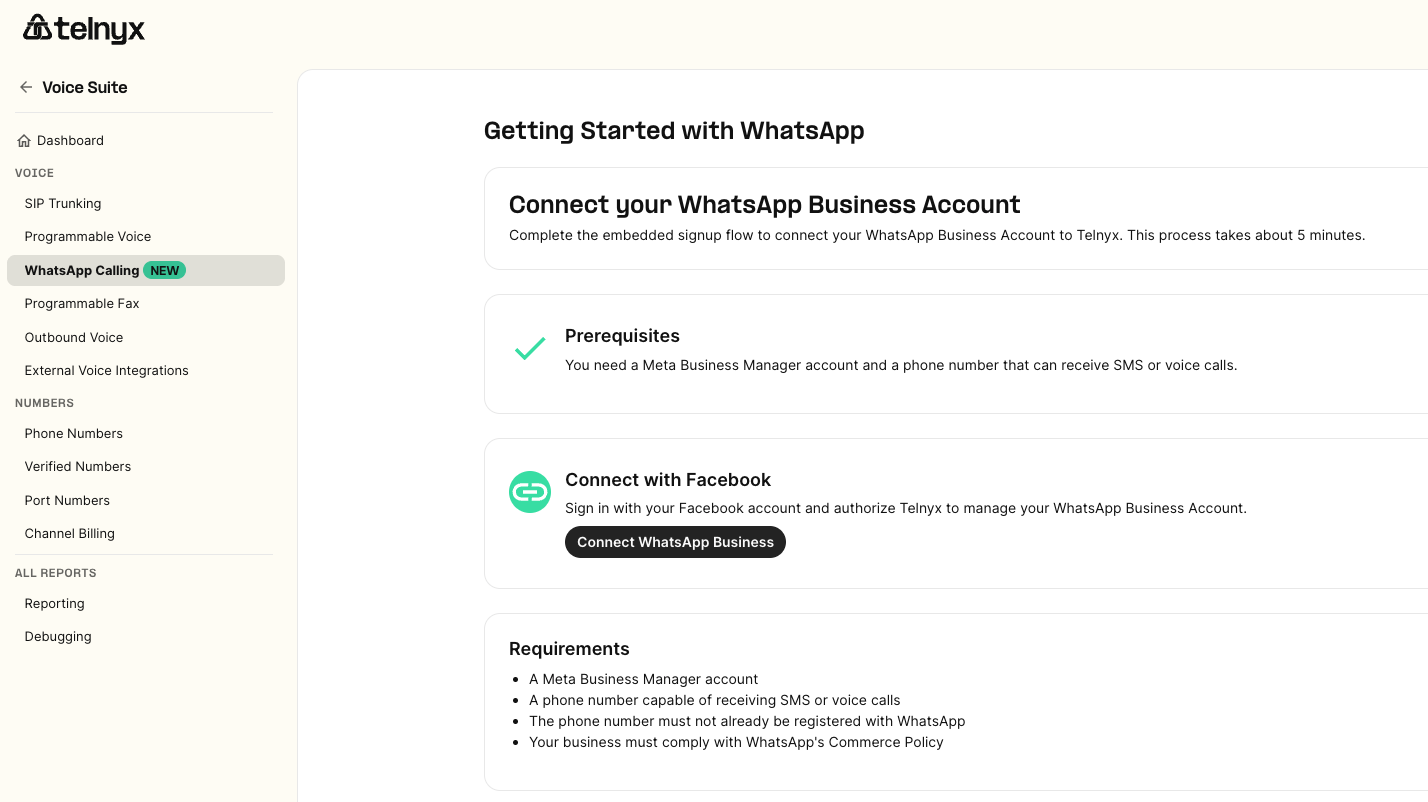
In Mission Control, navigate to Voice Suite → WhatsApp Calling.
-
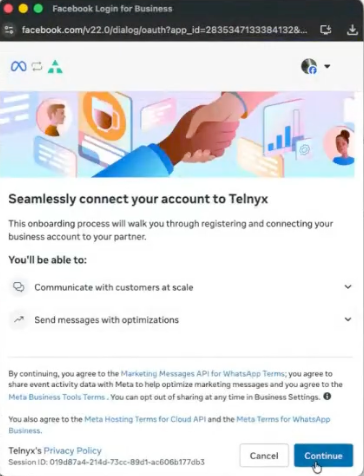
Click "Connect WhatsApp Business" which will trigger the embedded signup windows for the integration with Meta.
-
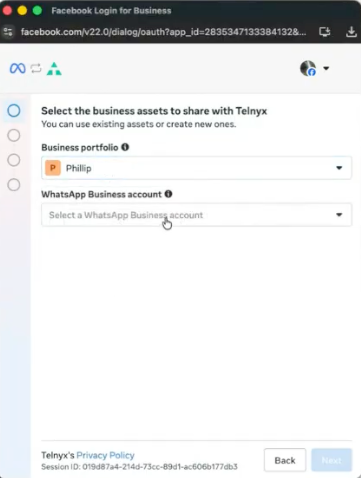
Select the WhatsApp Business Account (WABA) you want to associate with WhatsApp Calling.
Step 2 - Associate your Telnyx number
-
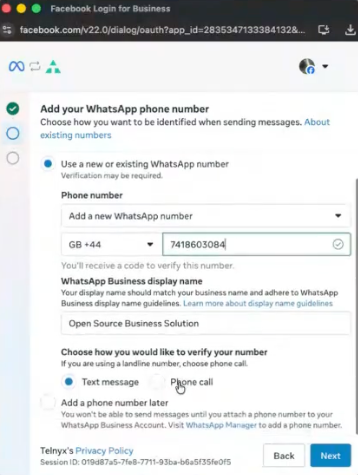
Select the Telnyx phone number you want to enable for WhatsApp Calling.
-
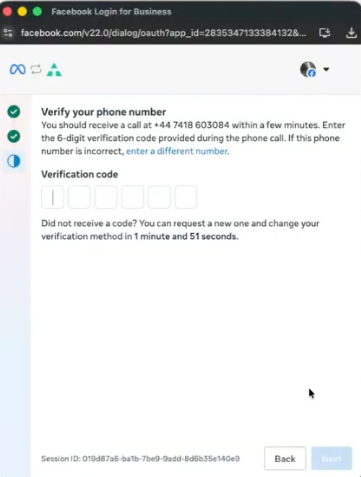
Your Telnyx number must be active and able to receive calls or SMS (mobile numbers only) — Meta will send a verification code to confirm ownership.
-
Enter the verification code once received.
Step 3 - Confirm your configuration
-
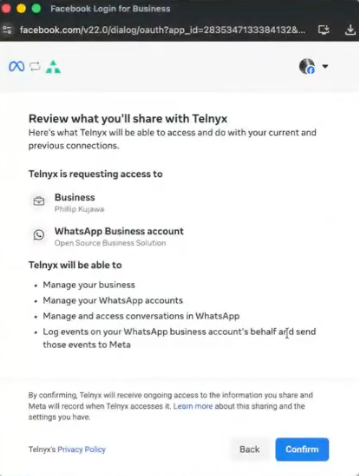
Review and confirm your WhatsApp configuration in Telnyx.
-
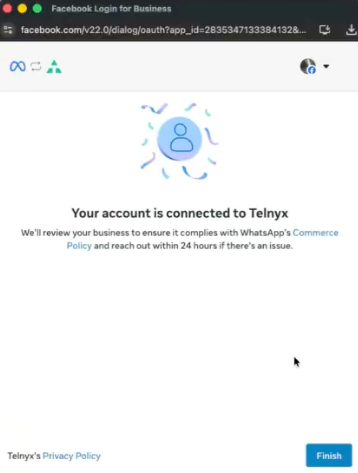
You'll see a confirmation screen indicating your Meta account has been successfully connected to Telnyx.
-
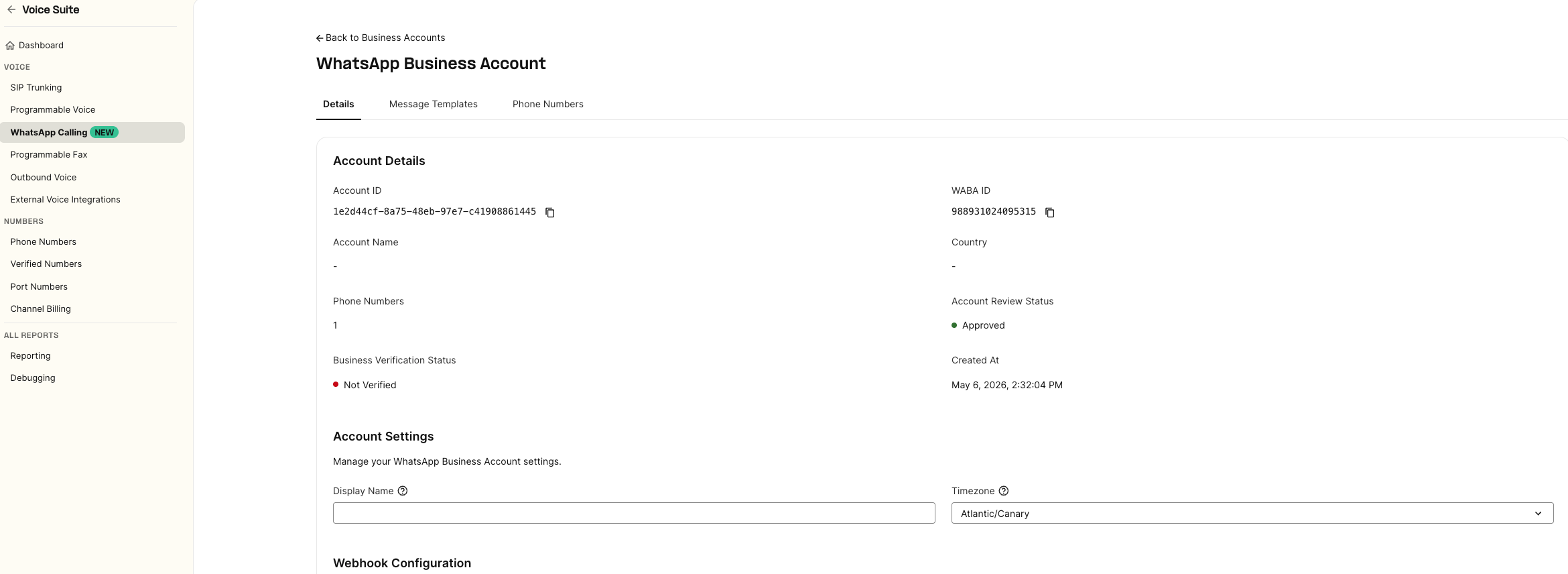
Navigate to Voice Suite → WhatsApp Calling → Business Account — your WABA should now appear with an Active status.

You can view and edit account details and settings from here. It can take up to 2 minutes for this information to show up.
Step 4 — Enable WhatsApp Calling in Telnyx
-
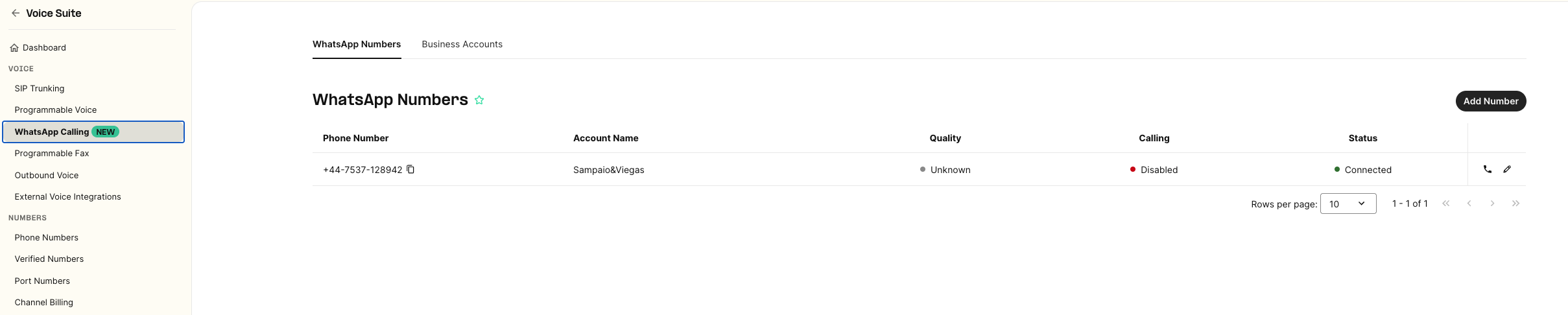
In Mission Control, navigate to Voice Suite → WhatsApp Calling → WhatsApp Numbers.
-
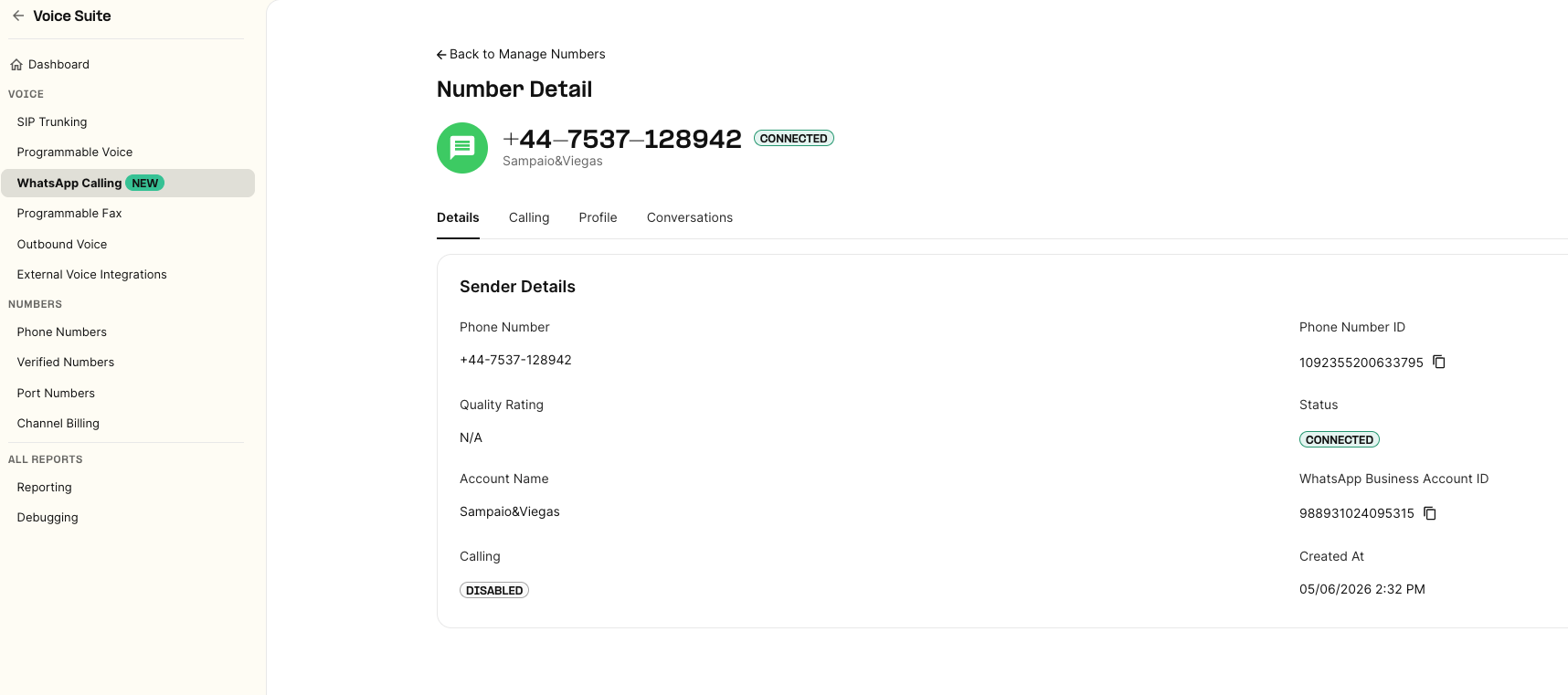
Select your number — it should show a Connected status.
-
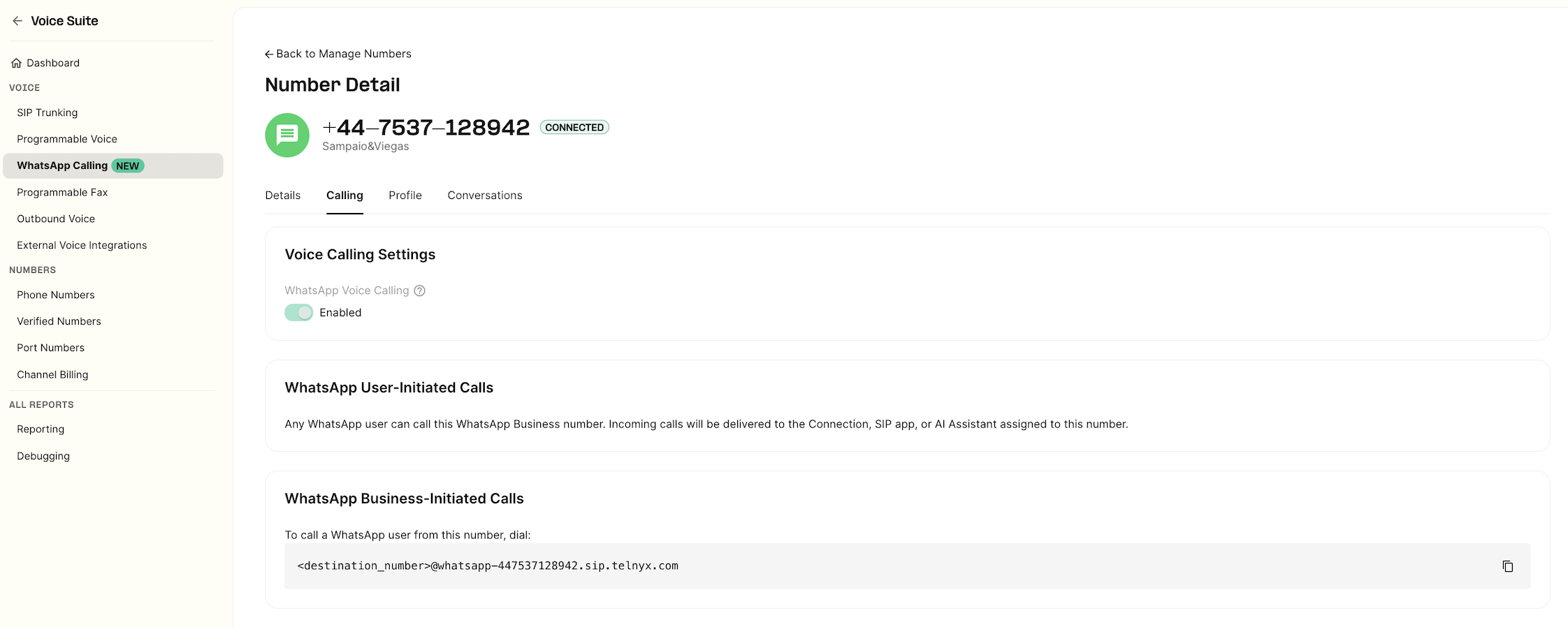
Open the Calling tab and toggle WhatsApp Calling to enabled.
Using Your Own WhatsApp Number (BYON)
With Bring Your Own Number (BYON), you can import an existing non-Telnyx WhatsApp Business number and receive inbound WhatsApp voice calls through Telnyx. You do not need a Telnyx-owned number for this inbound calling setup.
| Setup | Telnyx number | BYON number |
|---|---|---|
| Add the number | Associate your Telnyx number with your WABA | Import your non-Telnyx WhatsApp number |
| Enable calling | Enable Calling on the number | Enable Calling on the imported number |
| Route inbound calls | Uses the connection or application assigned to the Telnyx number | Select a SIP Connection in the Inbound connection dropdown |
Set up inbound calling for a BYON number
-
Connect your WhatsApp Business Account in Voice Suite → WhatsApp Calling, as described in Step 1 above.
-
Import your existing non-Telnyx WhatsApp number into your WABA in Mission Control. See How to Set Up WhatsApp on Telnyx for the account and number setup flow.
-
Open Voice Suite → WhatsApp Calling → WhatsApp Numbers and select the imported number.
-
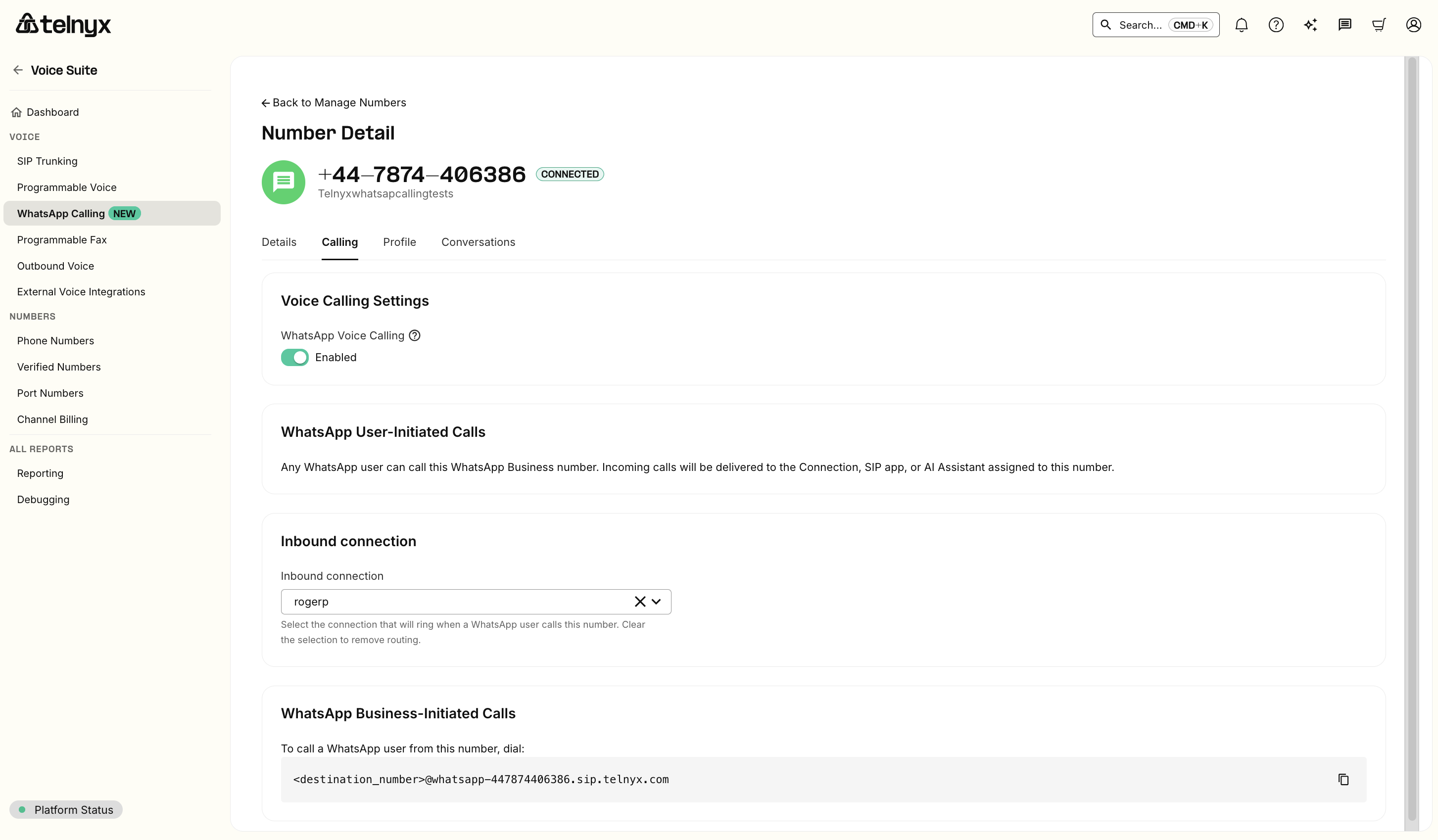
Open the Calling tab and enable WhatsApp Voice Calling.
-
Under Inbound connection, select the SIP Connection that should receive inbound WhatsApp calls.
-
Wait for Mission Control to confirm the routing update before testing an inbound WhatsApp call.
The Inbound connection selector appears for BYON numbers with Calling enabled. Choose a connection in your own Telnyx account. WhatsApp authentication connections cannot be used as inbound routing targets.
You can change the selected connection later. Clearing the selection removes the inbound routing assignment; choose a connection again to restore routing.
Place and Receive Calls
User-Initiated Calls
Once WhatsApp Calling is enabled and inbound routing is configured for your number, your business is ready to receive calls from WhatsApp users.
WhatsApp users can reach you in the following ways:
- Call button in chat — if enabled, a call icon appears directly in the WhatsApp chat interface with your business.
- Click-to-call button — via an interactive message or template you send to the user.
- Deep link — a call link you embed on your website, app, or QR code that launches a call directly.
Regardless of how the call is initiated, it connects through WhatsApp:
- Telnyx numbers: Calls use the SIP connection or Programmable Voice application already assigned to the number. No additional inbound-routing selection is required.
- BYON numbers: Calls use the SIP Connection you selected in the number's Calling tab. Enabling Calling alone does not replace this routing step.
Business-Initiated Calls
You can initiate a call to any Whatsapp Number as long as you meet these requirements:
- You’re initiating the call from one of your SIP connections or Programmable Voice applications
- You’re using the Whatsapp Calling number as the From number
- The user has granted permission for you to call them
- Your Whatsapp Calling number is not from any of these countries: USA, Canada, Egypt, Vietnam, Nigeria
To place a call to a WhatsApp user from your Telnyx number, use the following dial string format:
<destination_number>@whatsapp-<your_telnyx_number>.sip.telnyx.com
Where:
<destination_number>is the WhatsApp user's phone number in E.164 format (e.g.+447911123456)<your_telnyx_number>is your WhatsApp-enabled Telnyx number in E.164 format, without the leading +
Example: If your Telnyx number is +447418613982 and you want to call +447911123456, the dial string is:
+447911123456@whatsapp-447418613982.sip.telnyx.com
This SIP URI can be used as the destination when placing WhatsApp calls from SIP, Voice API, or TeXML workflows.
Obtaining calling permission
You can obtain calling permission from a WhatsApp user in any of the following ways:
- Send a call permission request to the user — Send a free-form or templated message requesting calling permission from the user. User has the option to choose between temporary or permanent.
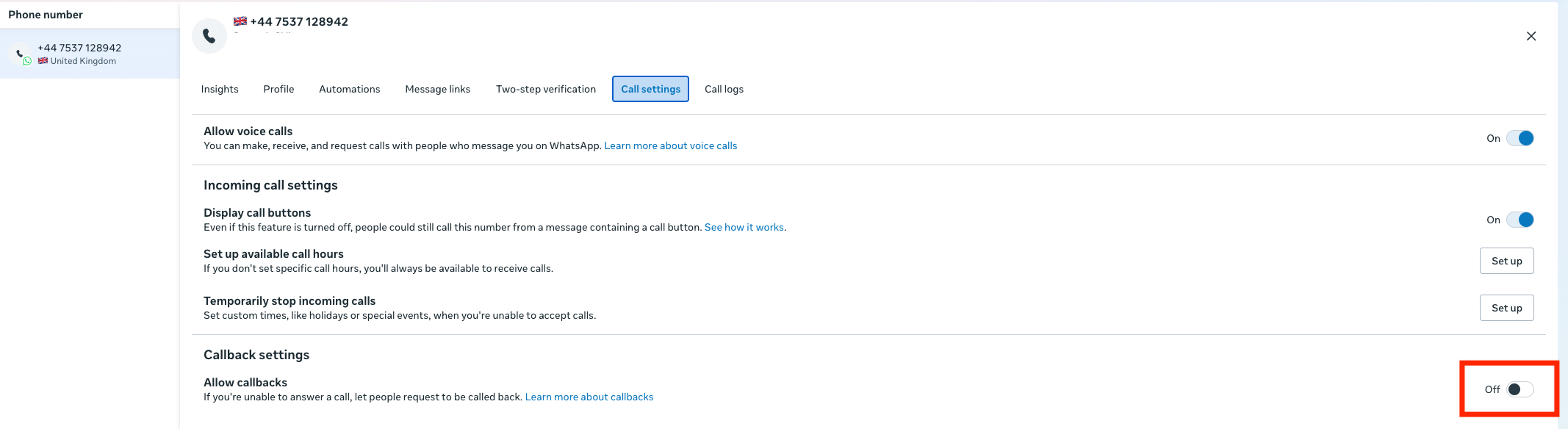
- Callback permission is provided by the WhatsApp user — The WhatsApp user automatically provides temporary call permissions by placing a call to the business. The callback setting must be enabled on the business phone number.
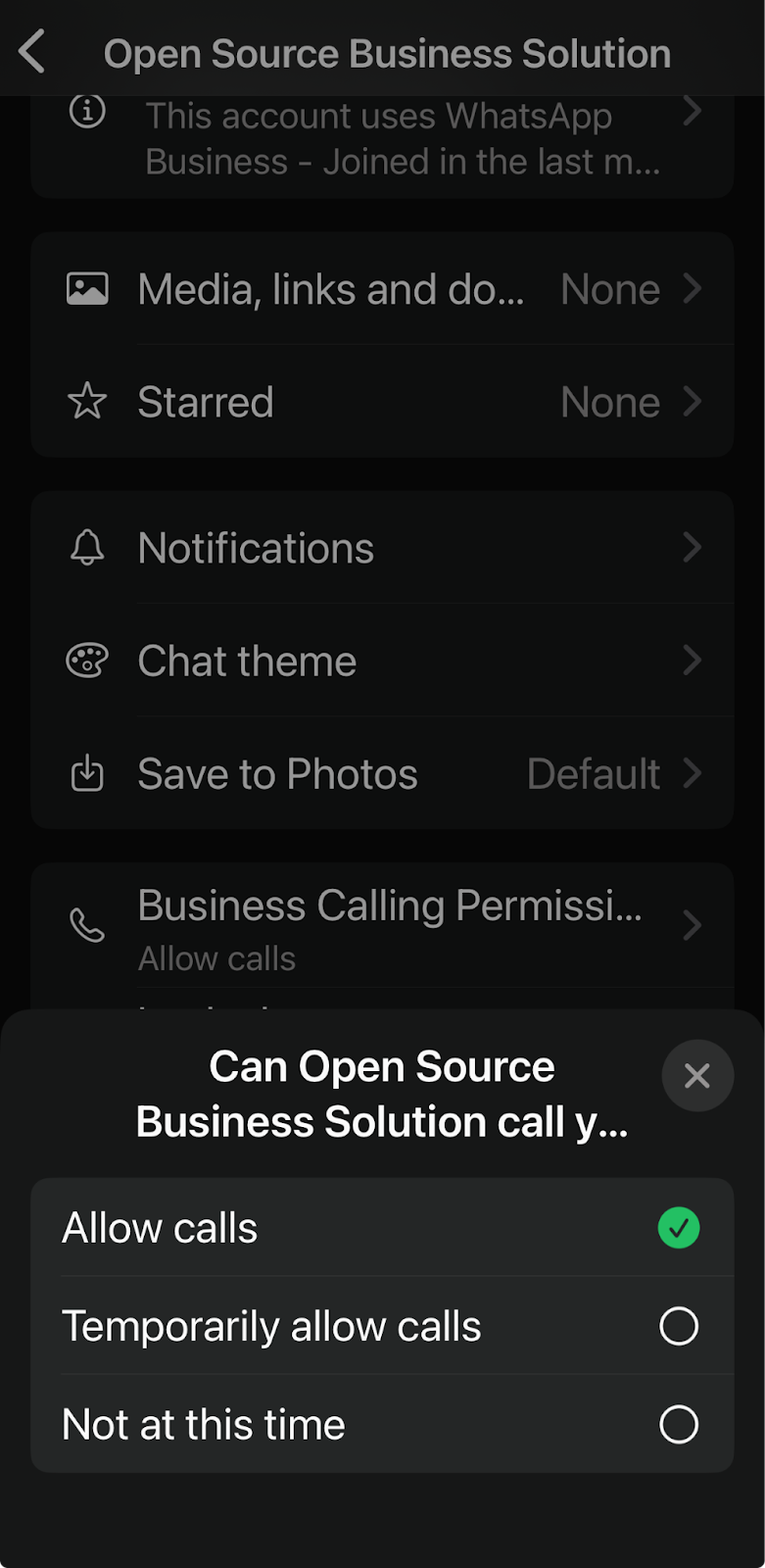
- WhatsApp user provides call permission via Business Profile — The WhatsApp user provides call permissions to the business through their business profile.
Send a call permission request to the user
Send a permission request to the WhatsUp user via the WhatsApp Cloud API, either as a template or free-form message Keep in mind the following rate limits:
- Maximum 1 request per 24 hours per user
- Maximum 2 requests per 7 days per user
- These limits reset automatically once a connected call (business- or user-initiated) takes place between you and the user.
-
Wait for approval. Once the user grants permission, you can place the outbound WhatsApp call from your configured Telnyx workflow.
-
Understand permission duration. Permissions can be:
- Temporary — valid for 7 days
- Permanent — granted by the user indefinitely
More details about the call permission request flow and sample message can be found here
Callback permission is provided by the WhatsApp user
Businesses can configure the phone number call setting to allow callbacks. When enabled, a temporary calling permission is automatically granted after a WhatsApp user calls the business profile.
Go to WhatAapp Manager>Phone on your Meta Business Suite, select your number, go to Call Settings and enable "Allow Callbacks"
WhatsApp user provides call permission via Business Profile
WhatsApp users can grant permission directly from your WhatsApp Business profile at any time by following these steps:
- Save your Telnyx number as a WhatsApp contact
- Open the contact — it will appear as a Business Profile
- Tap View Contact → Business Call Permission
- Select the desired permission option
Important: Unanswered call behaviour
WhatsApp monitors consecutive missed business-initiated calls on a per-user basis:
- After 2 consecutive unanswered calls, WhatsApp sends the user a nudge notification.
- After 4 consecutive unanswered calls, permission is automatically revoked and you'll need to request it again.
To avoid hitting this limit, only call users who are expecting to hear from you.
More information about Meta calling permissions can be found here
Troubleshooting
- Calling toggle — Confirm "Calling" is enabled for the number in Mission Control.
- Geo eligibility — If business-initiated calling fails, check the business phone number's country code against the exclusions listed above.
- Permission state — For business-initiated calls, verify user permission (temporary or permanent). If absent, send a permission request first.
- Number association — Confirm your Telnyx number or imported BYON number is linked to the correct WABA.
- BYON inbound routing — Open the number's Calling tab and confirm an Inbound connection is selected. Check that it belongs to your account and is configured to receive calls.
Price
A flat fee of $0.0025/min applies to both user-initiated and business-initiated WhatsApp calls.
Business-initiated calls are also subject to additional WhatsApp Calling charges based on the applicable rate deck.
To view your rates, check My Pricing in the portal or contact your account representative.
FAQs
Can I use my own WhatsApp number, not a Telnyx number?
Yes. Import your non-Telnyx WhatsApp Business number using BYON, enable Calling, and select the SIP Connection that should receive inbound WhatsApp calls.
How do I choose which connection receives inbound BYON calls?
Go to Voice Suite → WhatsApp Calling → WhatsApp Numbers, select your BYON number, and open the Calling tab. Use the Inbound connection dropdown to select a SIP Connection in your account. Clearing the selection removes inbound routing. WhatsApp authentication connections cannot be selected as routing targets.
Can I bridge WhatsApp calls to PSTN? No. WhatsApp Calling is on-net to WhatsApp users only.
Do calls count against messaging limits? No. Calling has separate limits. However, Meta requires the WABA to have a ≥ 2,000 daily messaging limit to enable Calling.
Is there a limit to how many calls I can receive at once? Yes. Meta's maximum is 1,000 concurrent calls per business number.
What's the difference between user-initiated and business-initiated calls?
- User-initiated: The user calls your WhatsApp Business number through WhatsApp, no special permission needed.
- Business-initiated: You call the user, but must first request their permission either through a template message or a free-form message during an active customer service window.
- How do business-initiated calling permissions work? Send a permission request (max 1 per 24 hours, 2 per 7 days per business+user). Temporary permission lasts 7 days; permanent permission is also supported. If 2 consecutive business-initiated calls go unanswered, WhatsApp notifies the user. After 4 consecutive unanswered calls, permission is auto-revoked.
Why is my business-initiated call failing?
Common causes include:
- The dial string is not properly formatted according to the integration requirements
- The WhatsApp user has not granted calling permission
- The user’s temporary calling permission has expired
- The calling permission was automatically revoked after repeated unanswered calls
- The WhatsApp calling number is not associated with the connection being used to place the call
Verify that the dial string matches the documented format, ensure the WhatsApp user has granted valid calling permissions, and confirm that the WhatsApp-enabled number is assigned to the same connection originating the call.