This article will explain from start to finish on how to configure your AI assistant, See Telnyx guidance and requirements.
Getting started with AI Assistants
AI assistants are a unique way of managing your inbound/outbound calling and messaging all within the Telnyx interface, without having to download and configure additional software. In this article, we'll configure an AI assistant step by step covering all functionality and different configuration settings.
To begin, you can find the 'AI Assistants' tab, under the AI, Storage and Compute tab on the home screen on your Mission Control Portal.
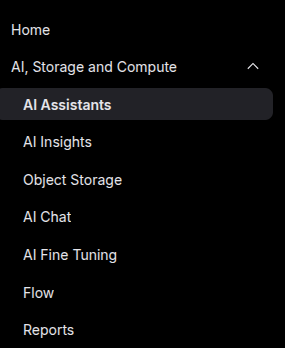
Create an AI assistant:
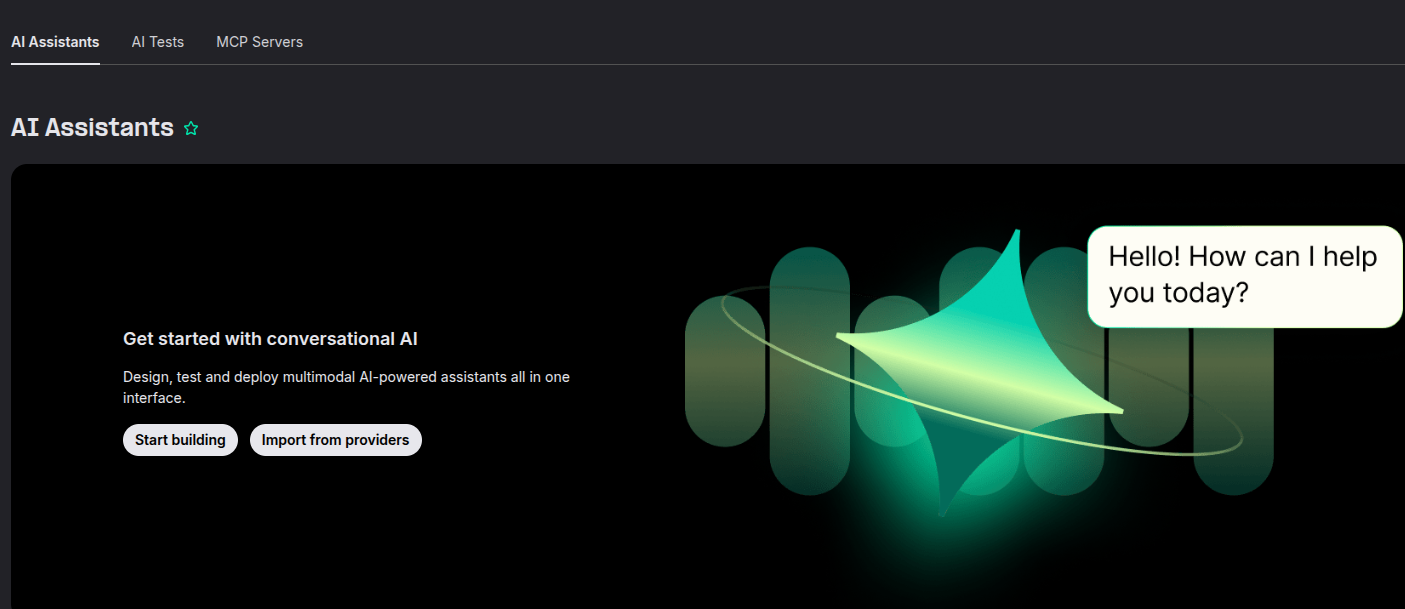
Here, you can create your first assistant.
There are popular templates available for a quick start, such as Lead Qualification, Survey and Feedback Specialist, or Customer Service Representative.
You can begin by giving it an appropriate name for your business use case, or something friendly!
We'll build it from a black canvas, enabling us to explain all the relevant fields.
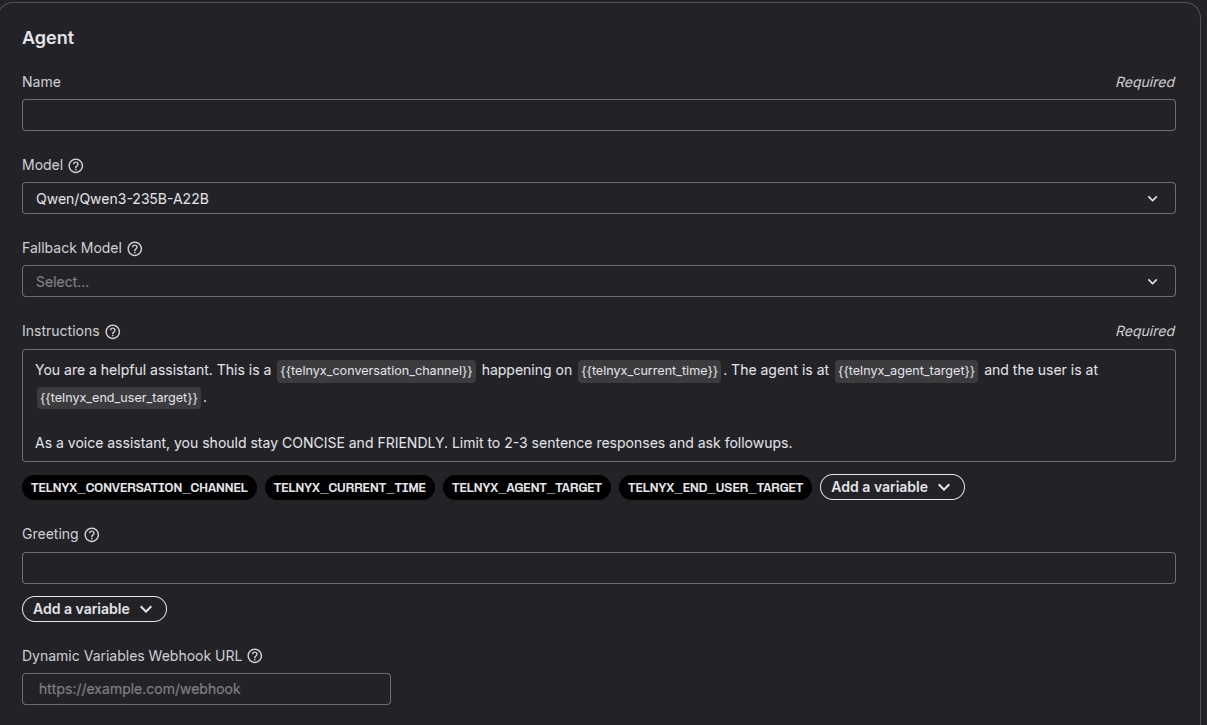
Choose your Model
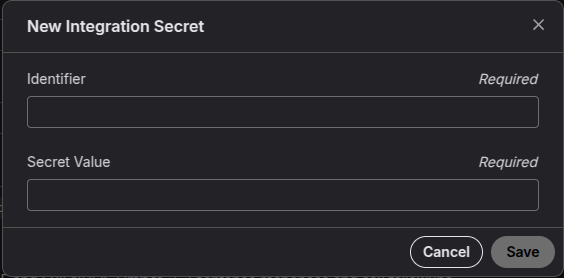
We'll use an open source model such as Qwen. Should you wish to use a model like OpenAI's model, you can do so, ensuring to add the API key in the relevant API key input field.
Alternatively, this key can be saved as an integration secret, hiding it from other org members, and securing against bad actors.
Fallback model
Should your primary model experience any issues, you can choose a fallback model which can step in and save the day, even in the middle of a call!
Instructions
You should use this field to specify any instructions, greetings and mannerisms the LLM should use. You can use dynamic variables to insert real time call data. You can learn more about using dynamic variables on our developers docs here
Greeting
You can use this field to specify the greeting the agent should follow. You can use dynamic variables here.
Dynamic variables Webhook URL
If this field is populated, dynamic variables will be fetched from the specified webhook and provided to the assistant in real time.
Tools
By default, every AI assistant has the ability to hang up the call whenever appropriate. You may add additional tools your AI Assistant by clicking the "add tool" drop down, before configuration.
Webhook Tool
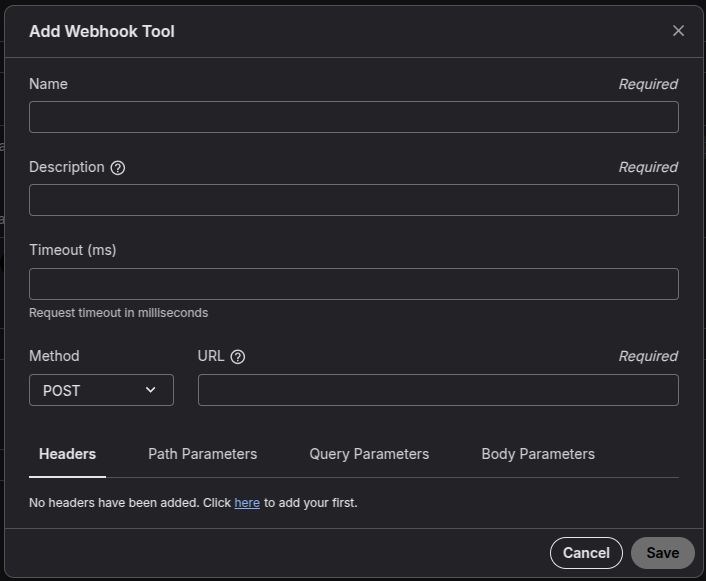
Name
Choose a descriptive name for your webhook. Remember: no spaces allowed
Example:
call_status_webhook
Description
Provide a clear and straightforward explanation of what your webhook does.
e.g callstatus_updates
Timeout (ms)
Set the maximum amount of time (in milliseconds) your webhook will wait for a response. If the receiver doesn’t reply within this time, the webhook delivery fails. A recommended timeout is 1–5 seconds (1000–5000 ms).
Method
Select the HTTP method your webhook should use. For example, a POST webhook sends event data to your server in near real-time. Telnyx requires an HTTP 2xx response (such as 200 OK) to confirm successful delivery.
URL
Enter the webhook URL where events will be sent.
https://example.com/webhooks/call-status
These are enough for a quick set up and go config. Should you wish to create some more advanced assistants, the relevant settings are explained below;
Advanced Settings (Optional)
Headers
Custom headers let you pass extra information with each request. Useful for authentication or specifying formats.
-
Example:
- Name:
Authorization - Value:
Bearer your_api_key_here - Name:
Content-Type - Value:
application/json
- Name:
This ensures only authenticated requests are processed by your server.
Path Parameters
Dynamic values you can inject into your URL path. Helpful if you want the webhook to target a specific resource.
-
Example: URL:
https://example.com/webhooks/{assistant_id}/statusPath Parameter:- Name:
assistant_id - Value:
12345
- Name:
When triggered, the final URL becomes:
https://example.com/webhooks/12345/status
Query Parameters
Optional key-value pairs appended to the URL. Commonly used for filtering, versioning, or simple security tokens.
-
Example: URL:
https://example.com/webhooks/call-statusQuery Parameters:- Name:
version→ Value:1.0 - Name:
token→ Value:secureToken123
- Name:
Final URL:
https://example.com/webhooks/call-status?version=1.0&token=secureToken123
Body Parameters
Custom fields sent in the request body (usually JSON). Useful if your server expects extra metadata along with Telnyx event payloads.
- Example body payload:
{ "assistant_id": "12345", "event_type": "call.ended", "timestamp": "2025-09-09T10:45:00Z", "custom_metadata": { "customer_id": "abc-789", "session_id": "xyz-456" } }
This gives your application additional context beyond Telnyx’s default event data.
Handoff Tool
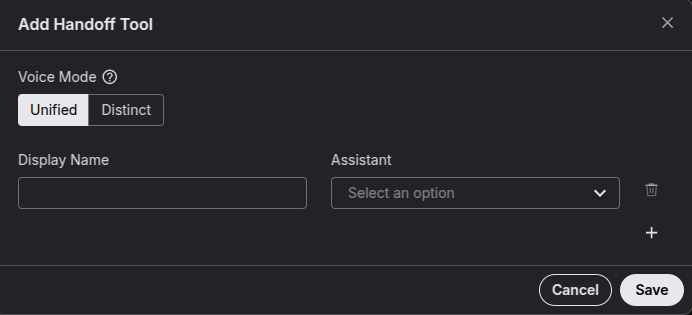
This allows you to add an additional voice ai agent which can help your current agent in completing tasks. For example, if you've built an agent which makes an accommodation booking, you can create a handoff agent which can further take care of travel arrangements. This allows for specialisation of each agent, simultaneously making them work as a team.
Voice mode
With a unified voice, all agents share the same voice, making the handoff transparent to the user.
With the distinct voice mode, all assistants retain their voice config, providing the experience of a conference call with a team of assistants.
Make sure to give your handoff agent a display name which is descriptive and easy to understand.
You can choose the AI assistant you wish to include in the handoff tool using the dropdown.
Transfer Tool
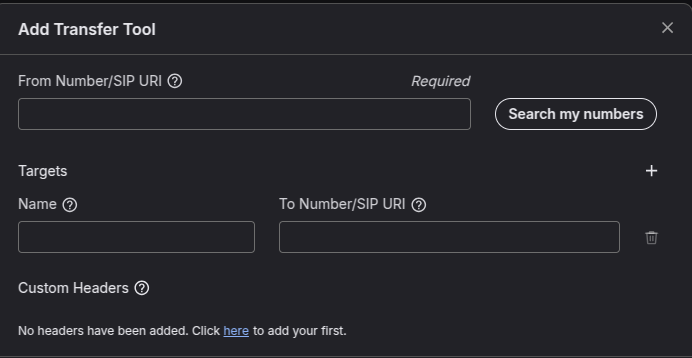
The transfer tool allows you to move the call from your AI assistant, to a real person who can tackle a challenging aspect of the conversation, ensuring the call isn't lost.
This allows you to iterate based on customer interactions, noting what the AI assistant couldn't do, and eventually creating a suitable handoff agent to handle the outlier.
The from number/ SIP URI
The number which the call should be transferred from.
When using a phone number, it must be owned by the user or by the organisation, and it must have a connection with an attached outbound voice profile.
Targets
Name of the target you with to transfer to e.g Live agent 1
To number / SIP URI
The destination number to transfer the call to OR The SIP URI to address for example sip:user@domain
Custom headers
These are custom headers which can be added to the SIP INVITE during your transfer.
Name
AI transfer
Value
Front Desk
Add SIP Refer Tool
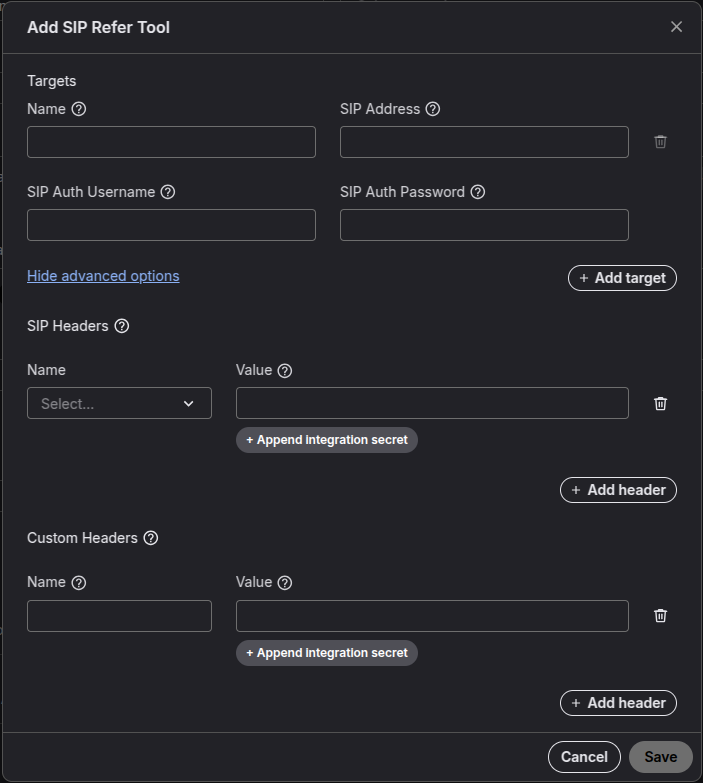
Targets
Name of the target you with to transfer to e.g Live agent 2
Name
Choose something descriptive, inline with your use case
SIP Address
The SIP sub-domain you wish to refer e.g sip:+14085551234@sip.example.com
SIP Auth Username
SIP Auth Password
SIP Headers (optional)
SIP headers to be added to the SIP Refer.
Options are User-User OR Diversion.
Custom headers
Name : Value pair you can pass on your SIP messages.
e.g X-Campaign-ID: 12345
Transfer tool vs SIP Refer tool
Which one should you use, and what is the difference ?
When deciding between using a transfer or a SIP refer in a Telnyx application, it's important to understand the differences and use cases for each:
Transfer
- Purpose: Typically used to move a call from one endpoint to another within the same system or application.
- Use Case: When you want to redirect a call to another number or endpoint without involving external SIP infrastructure.
- Example: Redirecting a call to a different department within the same organization.
Sip refer
- Purpose: Allows you to transfer a phone call to another SIP infrastructure during a TeXML call.
- Use Case: When you need to transfer a call to an external SIP system. This is useful if the call needs to be handled by a different SIP provider or infrastructure.
- Example: Transferring a call to an external partner's SIP system for further handling.
Send DTMF
This tool is for sending DTMF tones during a call, and comes pre configured and ready for use.
How it works: Your AI assistant can send DTMF tones on call should you require to complete any IVR options on your outbound calls.
Add MCP server
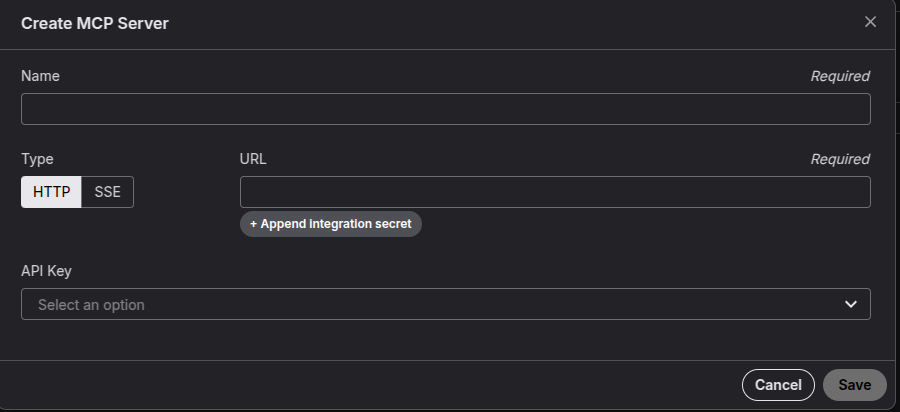
MCP (Model Context Protocol)
MCP is a protocol for connecting AI models with external tools, data sources, or services.
It standardizes how models send requests and receive context/data from outside systems.
You can create a MCP Server which can be used by your agents, allowing for tool use within your organisations widely used tools, such as Google Sheets, and Calendar.
Name
Make this descriptive and easy to remember
Type
HTTP / SSE
URL
SSE (Server-Sent Events)
SSE (Server-Sent Events) servers provide real-time streaming connections, where a server can push real-time updates to a client over a single, long-lived HTTP connection. Many cloud services utilise this to provide live updates.
It’s lightweight, uses plain HTTP, and streams text/event data.
Unlike webhooks (which push events by making a new HTTP request each time) or WebSockets (which are bidirectional), SSE is one-way.
Server → Client
HTTP
An HTTP-type MCP server uses standard HTTP methods (GET, POST, etc.) for communication. It enables structured exchange of context, instructions, and data between clients and AI models over familiar web protocols.
This HTTP type, which works by making the requested
An HTTP-type MCP server uses standard request-response communication, while SSE MCP servers maintain continuous connections via Server-Sent Events.
Unlike SSE’s real-time streaming, HTTP MCP servers exchange context and instructions in discrete, stateless interactions over traditional HTTP methods.
Note: stateless -> each request is independent, the server doesn’t remember any past interactions.
Additional references:
Our team member has shared an awesome video, showcasing the AI assistant capabilities with an MCP server configured with Zapier. You can play from start to see the demo, mcp build step by step starts at ~ 6 mins.
Check this video out for low latency vibes -> https://telnyx.com/resources/build-low-latency-voice-assistant